
Beszel

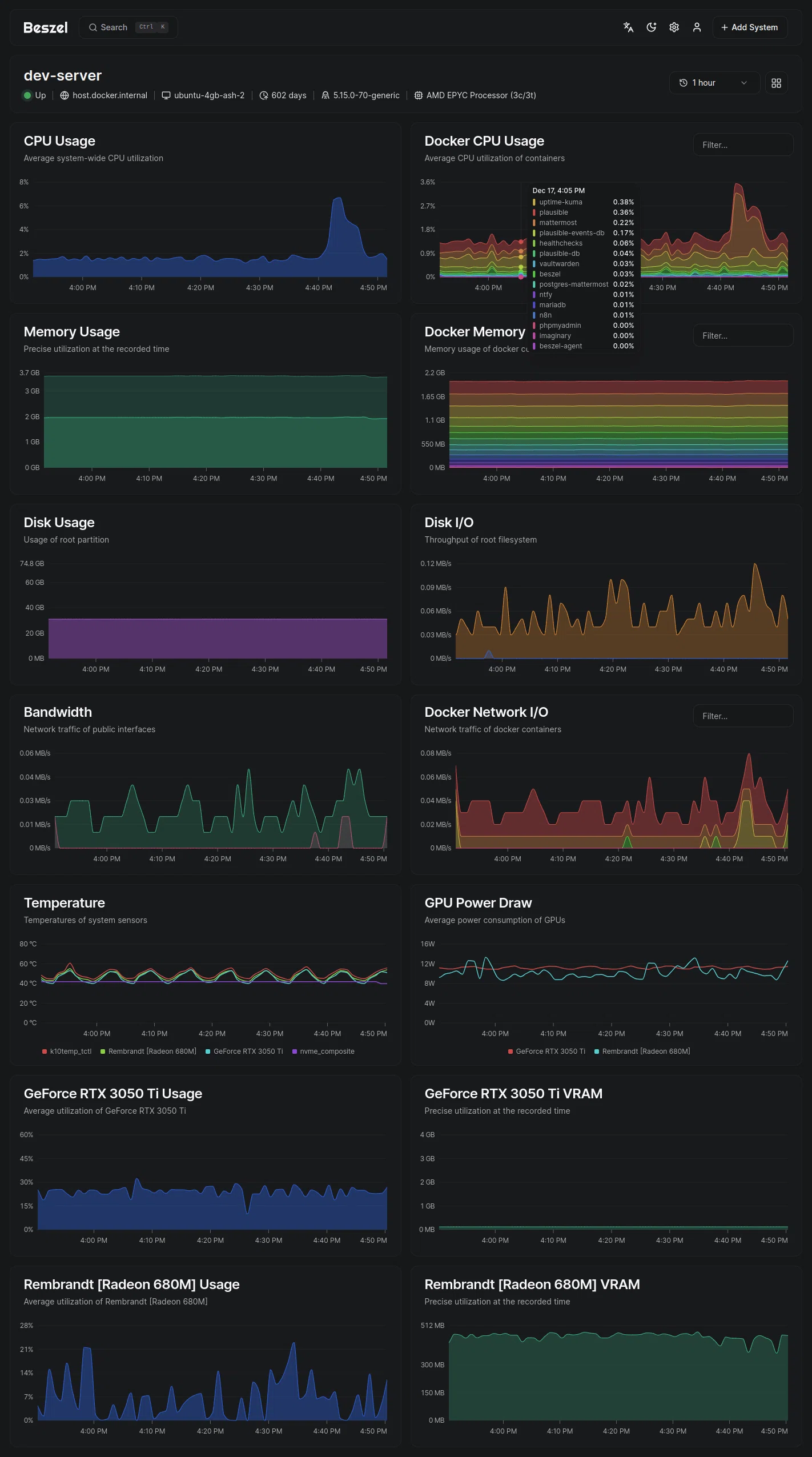
What is Beszel?
Lightweight server monitoring hub with historical data, docker stats, and alerts.
Setup
1. Deploy Beszel
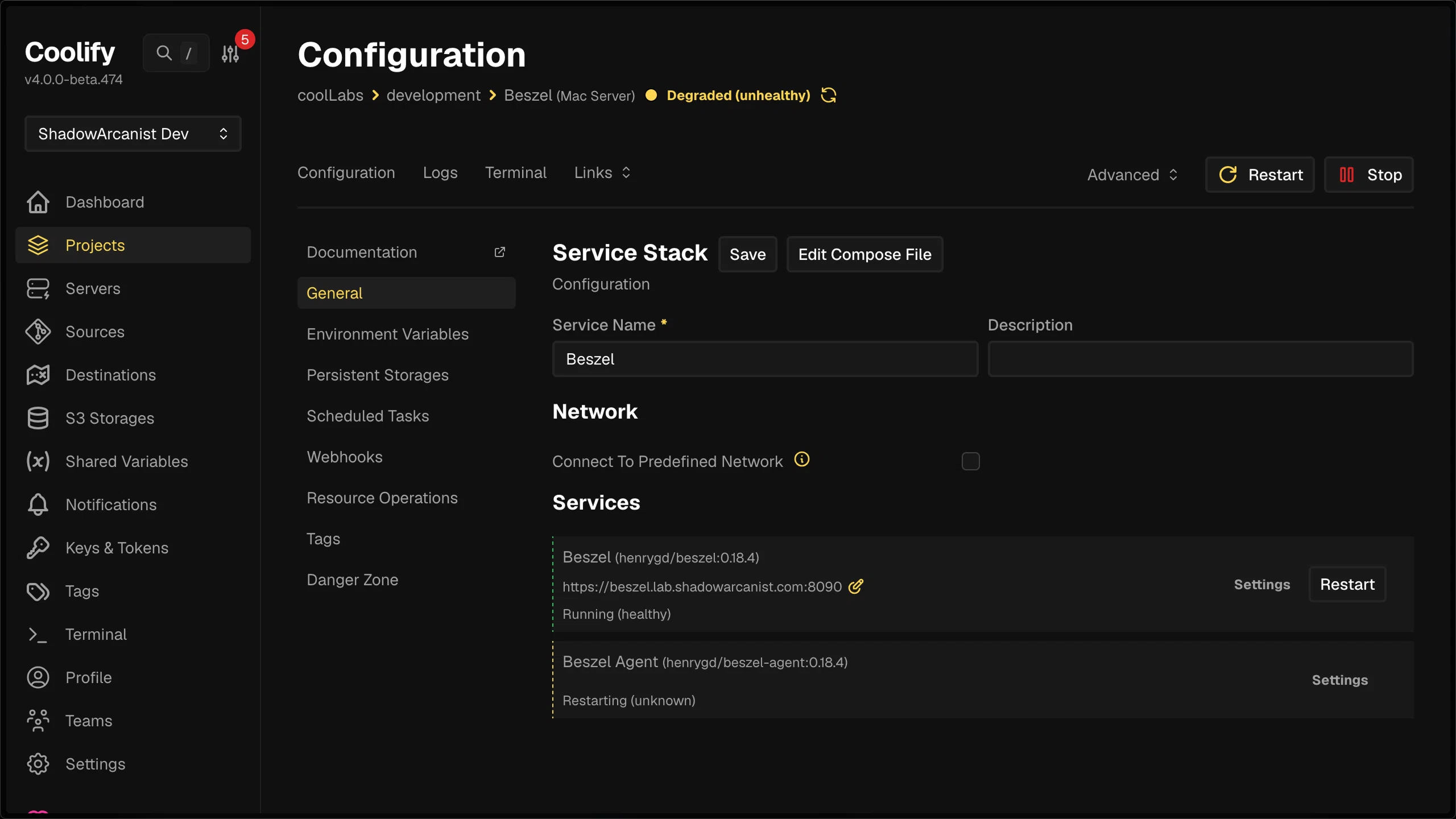
Create a new resource on Coolify and search for Beszel and select the template Beszel (you can select Beszel Agent if you only want to deploy the agent)
Then click the deploy button and wait for it to deploy.
When you deploy Beszel with Agent for first time the beszel-agent will be unhealthy and be in restarting state, this is normal and expected because it needs some additional steps to setup which are explained below.
2. Add System on Beszel dashboard
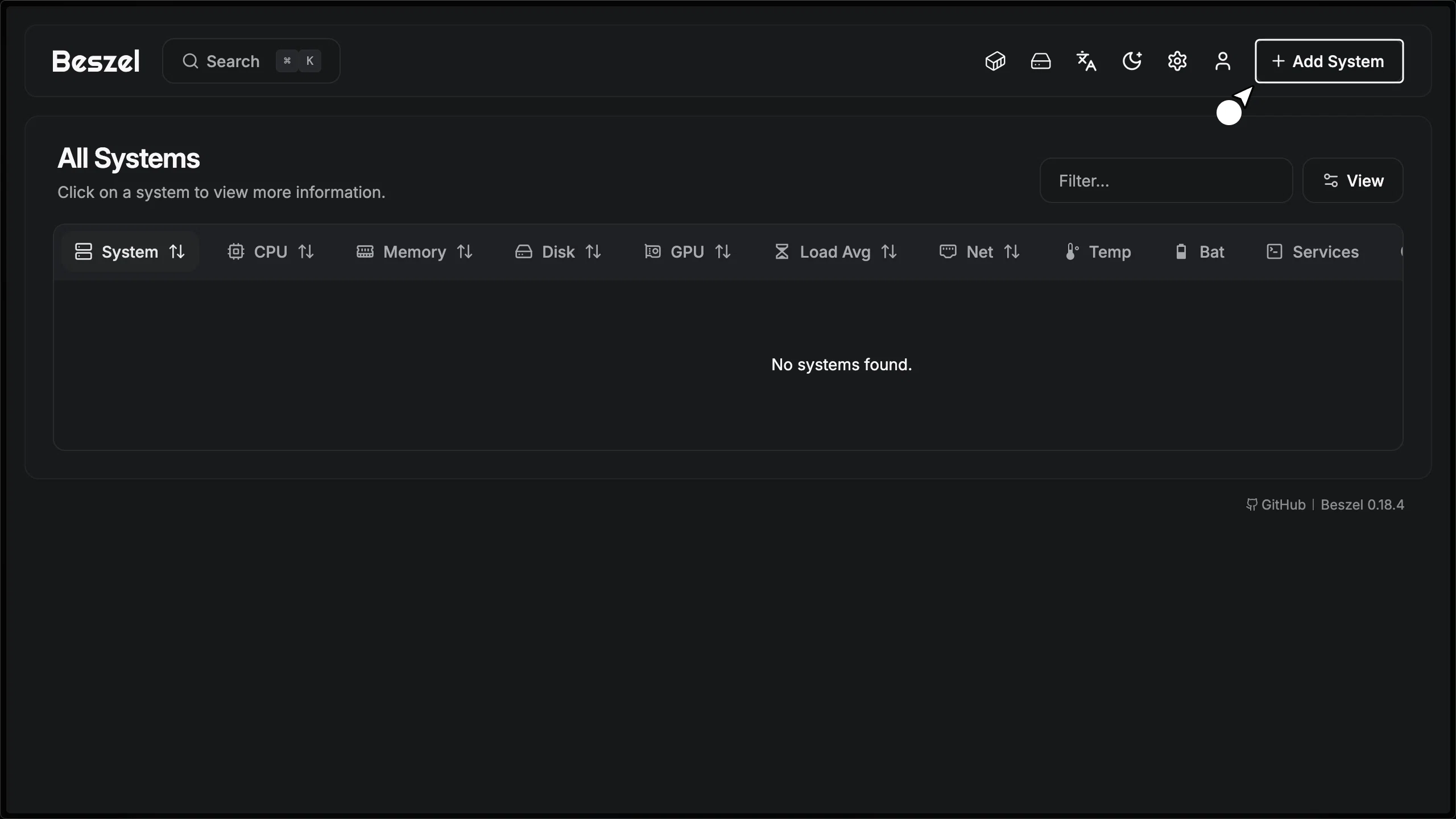
Visit the Beszel URL and create your first admin account on the Beszel dashboard.
After creating the account, click the "Add a new System" button in the top corner.
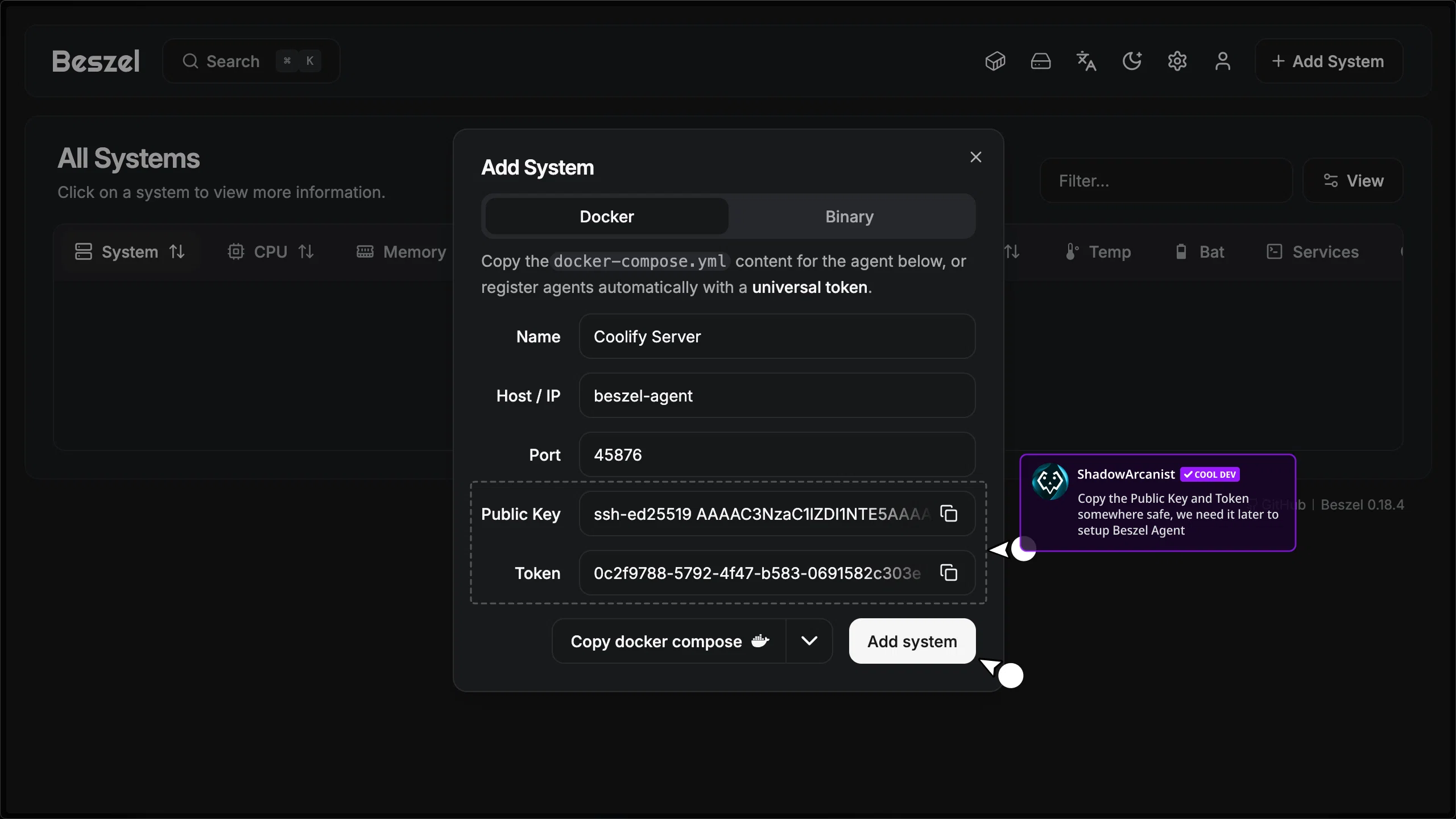
- Give a name for the Agent
- Enter
beszel-agentas the Host/IP if you are using the Beszel template; if you are using the Beszel Agent template, then enter the IP address of the server where the agent is deployed - Copy the value of
Public KeyandToken, then click on "Add system"
3. Set KEY and TOKEN environment variables on Coolify
Go to the Environment Variables on Coolify and enter the value for KEY and TOKEN variables. These are the Public Key and Token you copied from the Beszel dashboard in the previous step.
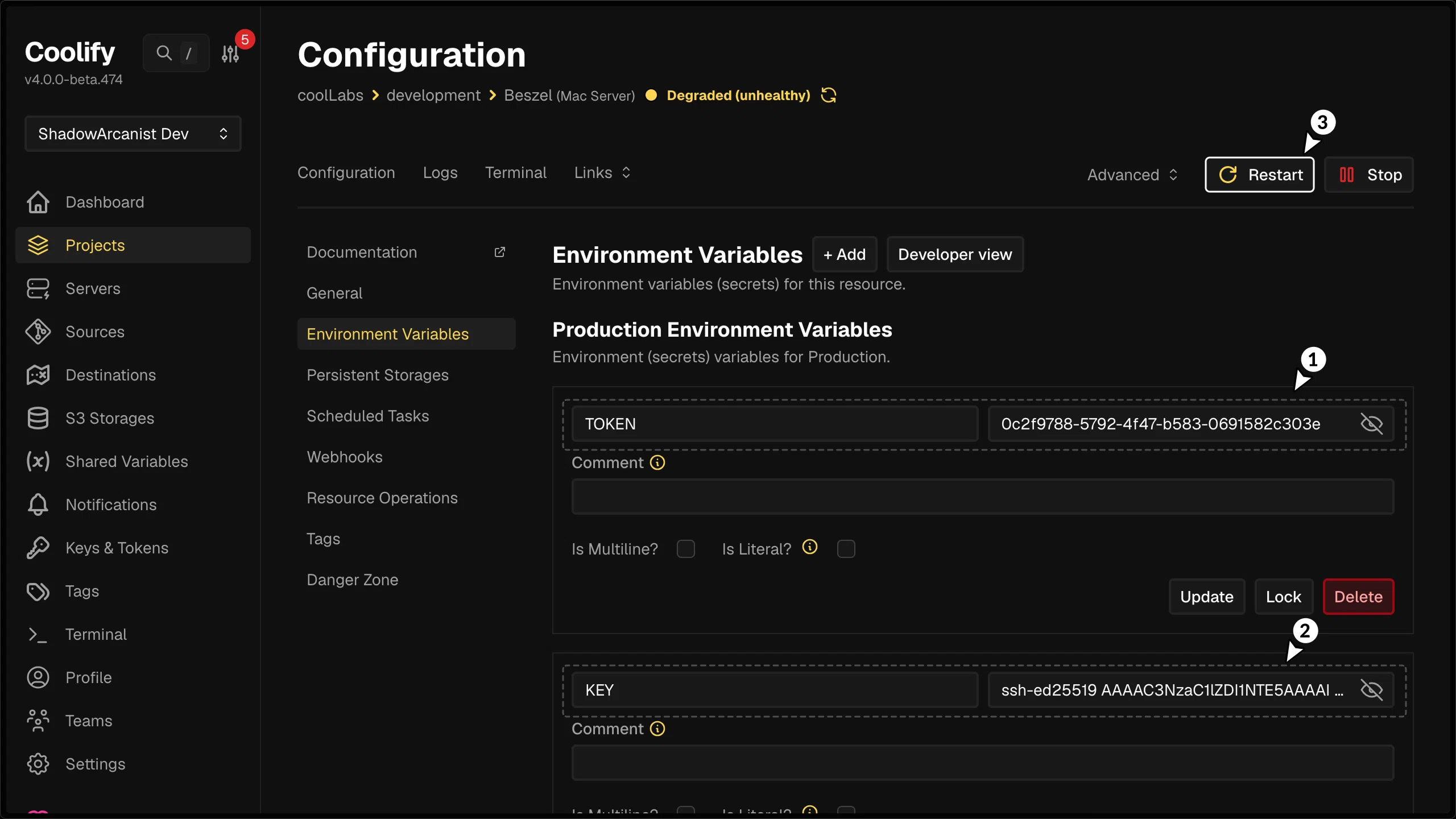
4. Restart Beszel
After you set the environment variables (previous step), restart Beszel by clicking the restart button.
Once it’s restarted, the beszel-agent service will become healthy and the Beszel dashboard will start showing data.
If you are using Coolify version below v4.0.0-beta.452, disable gzip compression in the hub service settings.
Go to the Beszel service in Coolify, click "settings", and uncheck the gzip compression option.