Stalwart

What is Stalwart
Stalwart is an all-in-one mail and collaboration server written in Rust. It replaces the traditional stack of separate components (MTA, IMAP server, spam filter, calendar server) with a single platform that supports SMTP, IMAP, POP3, JMAP, CalDAV, CardDAV, and WebDAV.
Configuring Stalwart
The following steps will guide you through the configuration of Stalwart once you have created the service in Coolify.
Initial setup
-
Coolify auto-generates a service URL for the admin interface (from
SERVICE_URL_STALWART_8080). You can access the admin panel immediately. However, for sending and receiving email you will need your own domain — see the DNS records section below. -
Open
/adminon the service URL and log in with usernameadmin. On first start, Stalwart runs in bootstrap mode and prints a temporary administrator password to the container logs (it is only shown once). To retrieve it:- Open the Logs of the Stalwart service in Coolify, or
- SSH into your server and run
docker logs <container-name>.
To use a fixed password instead, add
STALWART_RECOVERY_ADMIN=admin:<your-password>to the service environment variables before the first deployment. Remove it once setup is complete. -
Follow the setup wizard to add your domain and create your first mailbox.
-
Create additional mailboxes under Accounts > Mailboxes.
DNS records
For Stalwart to send and receive email, configure these DNS records at your domain registrar:
| Record | Type | Value |
|---|---|---|
| MX | MX | mail.yourdomain.com (priority 10) |
| SPF | TXT | v=spf1 mx ~all |
| DKIM | TXT | Generated in Stalwart under Settings > MTA > DKIM |
| DMARC | TXT | v=DMARC1; p=quarantine; rua=mailto:admin@yourdomain.com |
For PTR (reverse DNS), set it through your VPS provider's control panel so your server's IP resolves to your mail server hostname. See your provider's guide:
Troubleshooting
If you get a 502 Bad Gateway error when accessing the admin interface, Stalwart is likely rate-limiting your reverse proxy (Traefik). Since Traefik proxies many connections through a single IP, it can trigger Stalwart's port scanning protection.
Find your reverse proxy network
SSH into your server or use the Coolify terminal and run:
docker inspect coolify-proxy | grep -A 5 "Networks"Look for IPv4Address in the output. If it shows 10.0.1.6/24, your network is 10.0.1.0/24.
Recover access
If you are already locked out:
- Add
STALWART_RECOVERY_MODE=1andSTALWART_RECOVERY_ADMIN=admin:<your-password>to your environment variables and redeploy. Remove both once you have regained access. - Go to Settings > Security > Blocked IPs and remove the blocked IP.
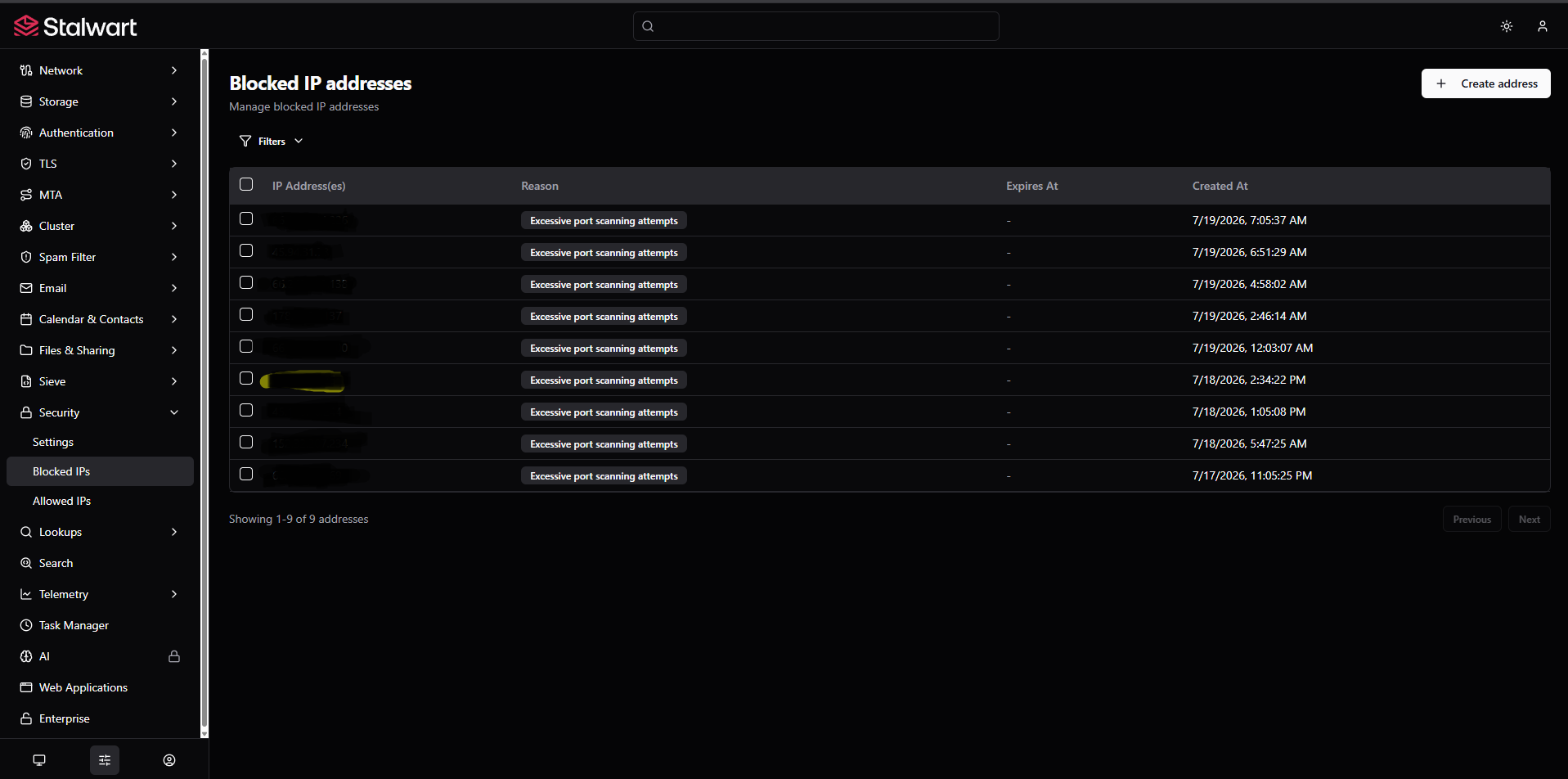
Whitelist your reverse proxy network
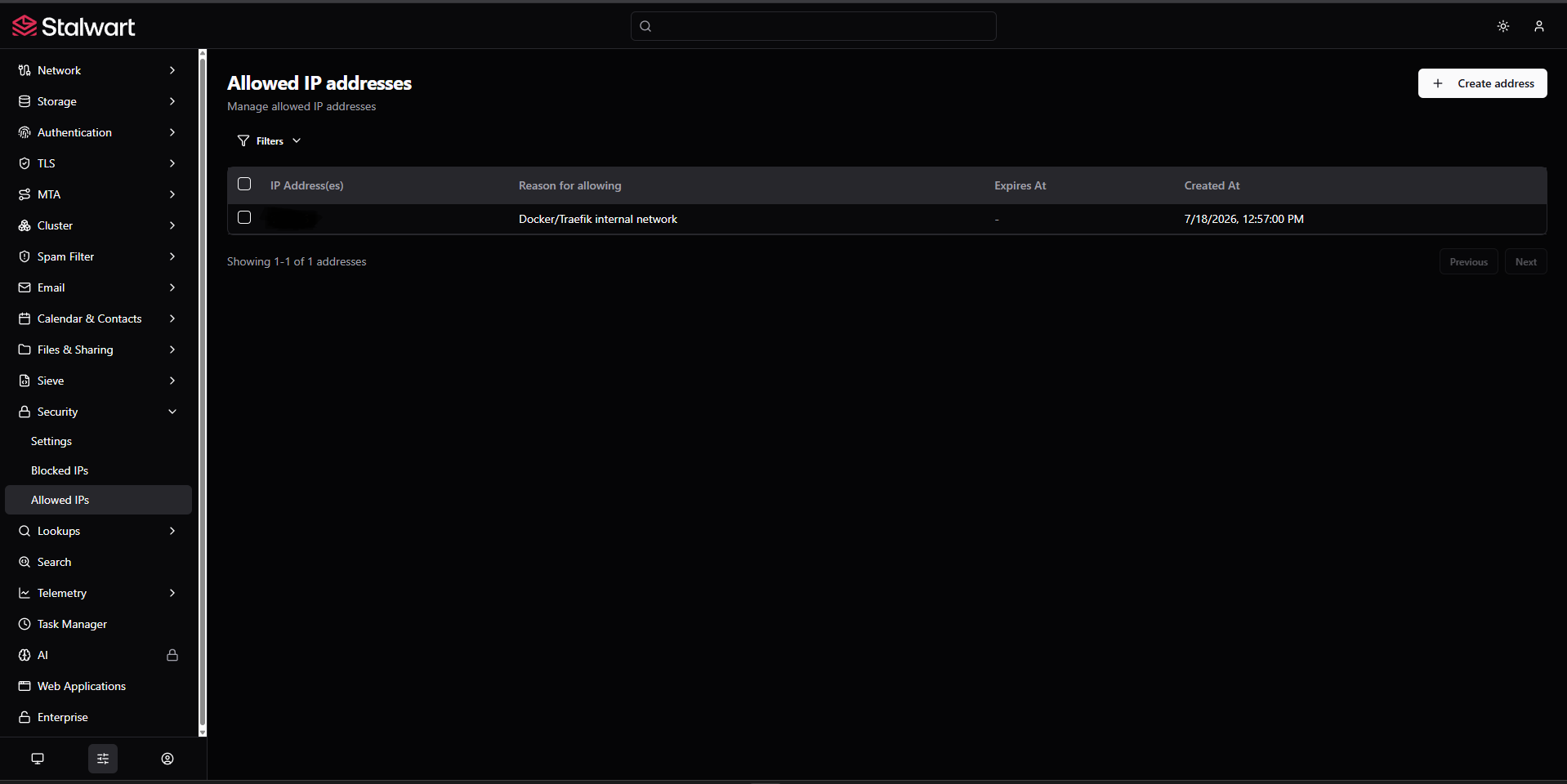
- Go to Security > IP Allowlist in the Stalwart admin panel.
- Add your Traefik network (e.g.,
10.0.1.0/24). Alternatively, add10.0.0.0/8to trust all Docker networks. - Set the reason to whatever you want (e.g. Traefik reverse proxy).
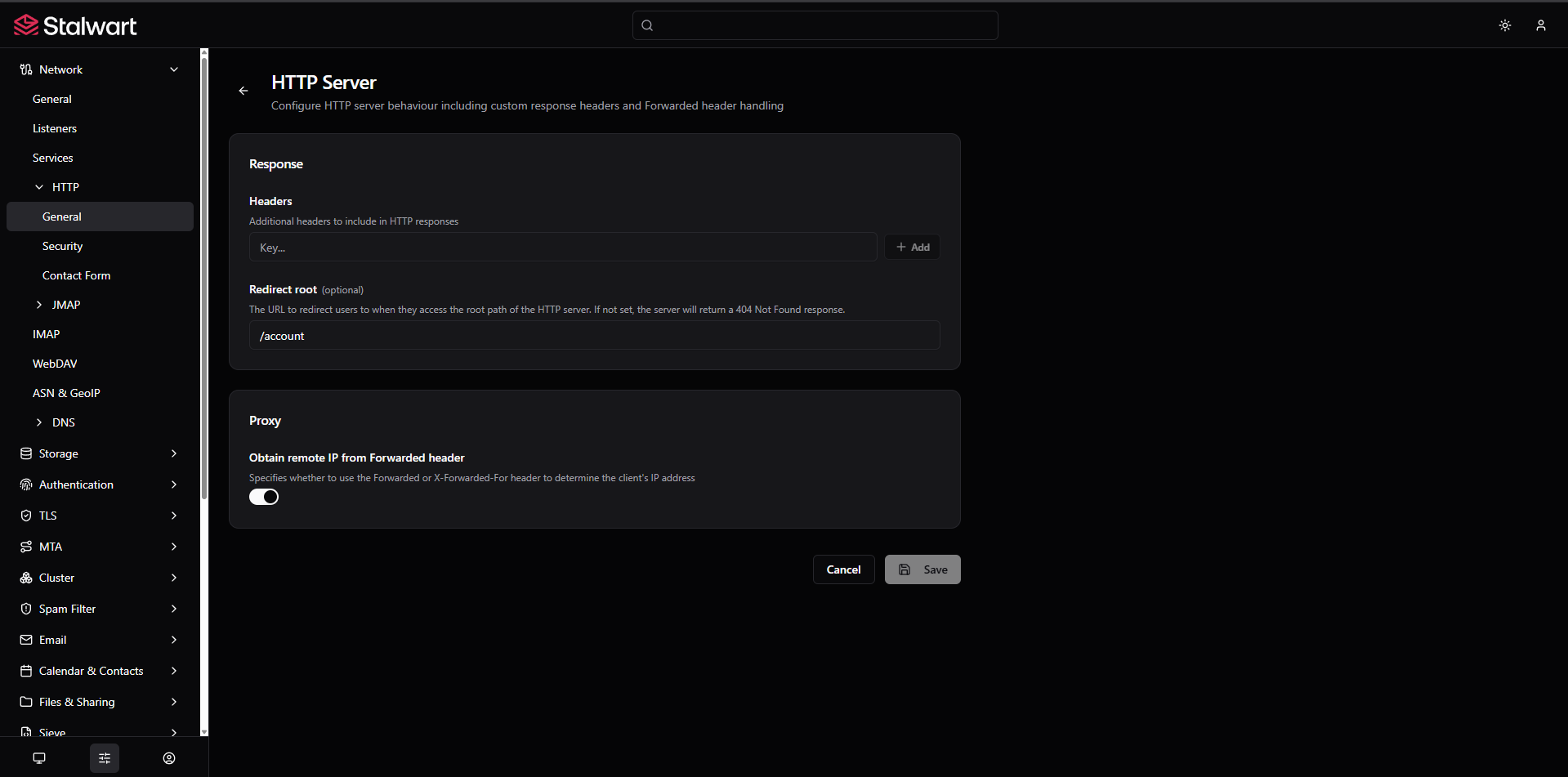
- Go to Settings > Network > Services > HTTP > General and enable Obtain remote IP from Forwarded header.