
Preview deployments
A preview deployment runs the code from a pull request or merge request separately from the production application. Each preview can use its own domain and environment variables without replacing the production deployment.
Coolify deletes an automatically created preview after its pull request or merge request is closed or merged.
Before enabling previews
Confirm that the application deploys successfully from its configured branch and that the deployment server has enough capacity to run production and preview containers at the same time.
A pull request can run code on the deployment server. Do not expose production credentials to preview deployments, and keep PR deployment access set to Repository members only unless you accept the risk of running code from public contributors.
Enable preview deployments
Open the application, select Preview Deployments in its settings sidebar, then select Enable preview deployments.
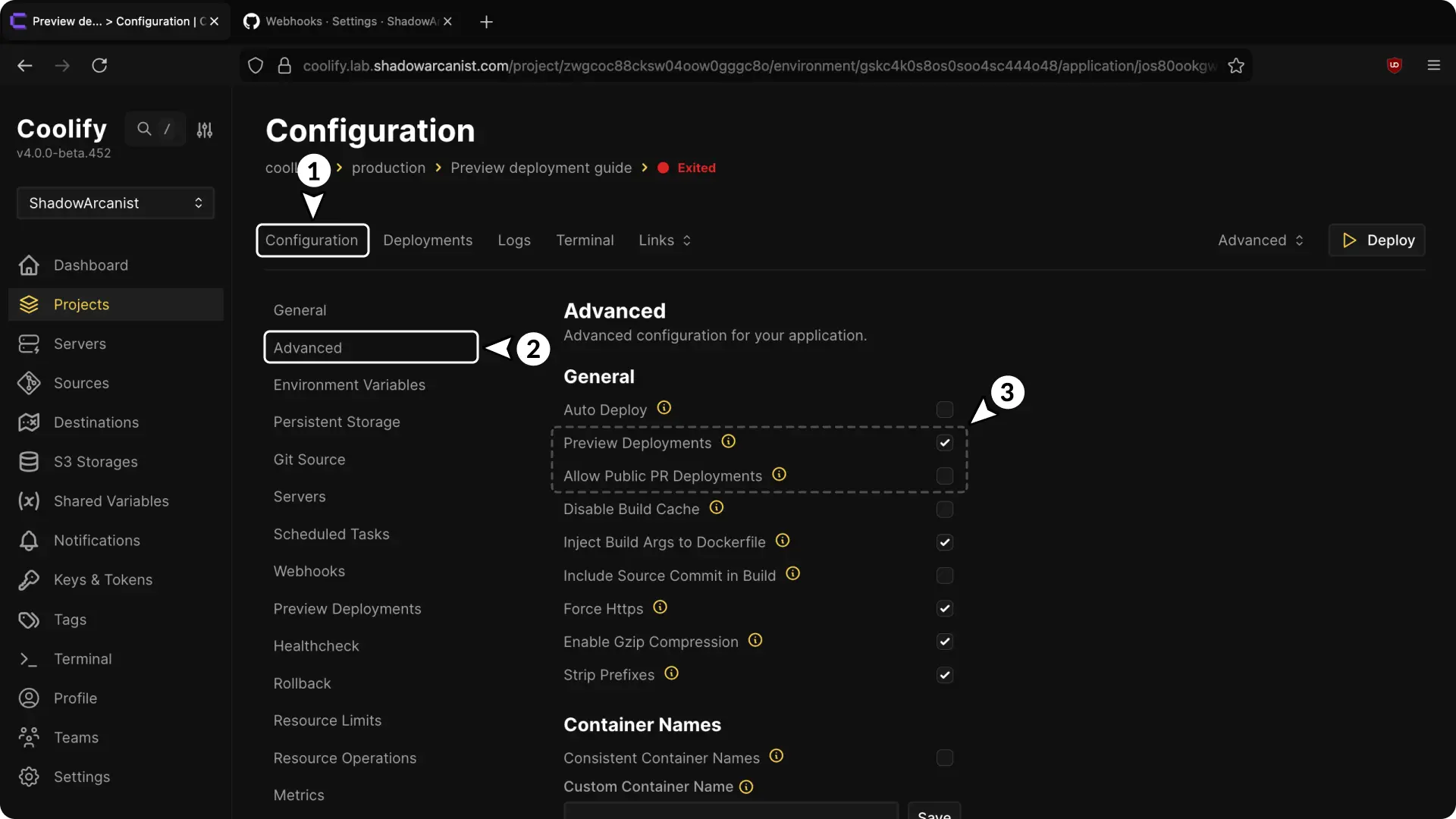
With PR deployment access set to Repository members only, Coolify blocks pull requests from forks unless the author is a repository owner, member, or collaborator. Choose Public (fork PRs allowed) only when anyone should be allowed to trigger a preview. GitLab, Gitea, and Bitbucket pull requests from other repositories require public preview deployments to be enabled.
Connect pull-request events
Choose how Coolify receives pull-request or merge-request events for the application.
Follow Set up a GitHub App first. Its repository installation must include the repository used by the application.
Enable preview permissions in Coolify
During automated GitHub App setup, set Preview deployment access to Read and update pull requests before selecting Register with GitHub.
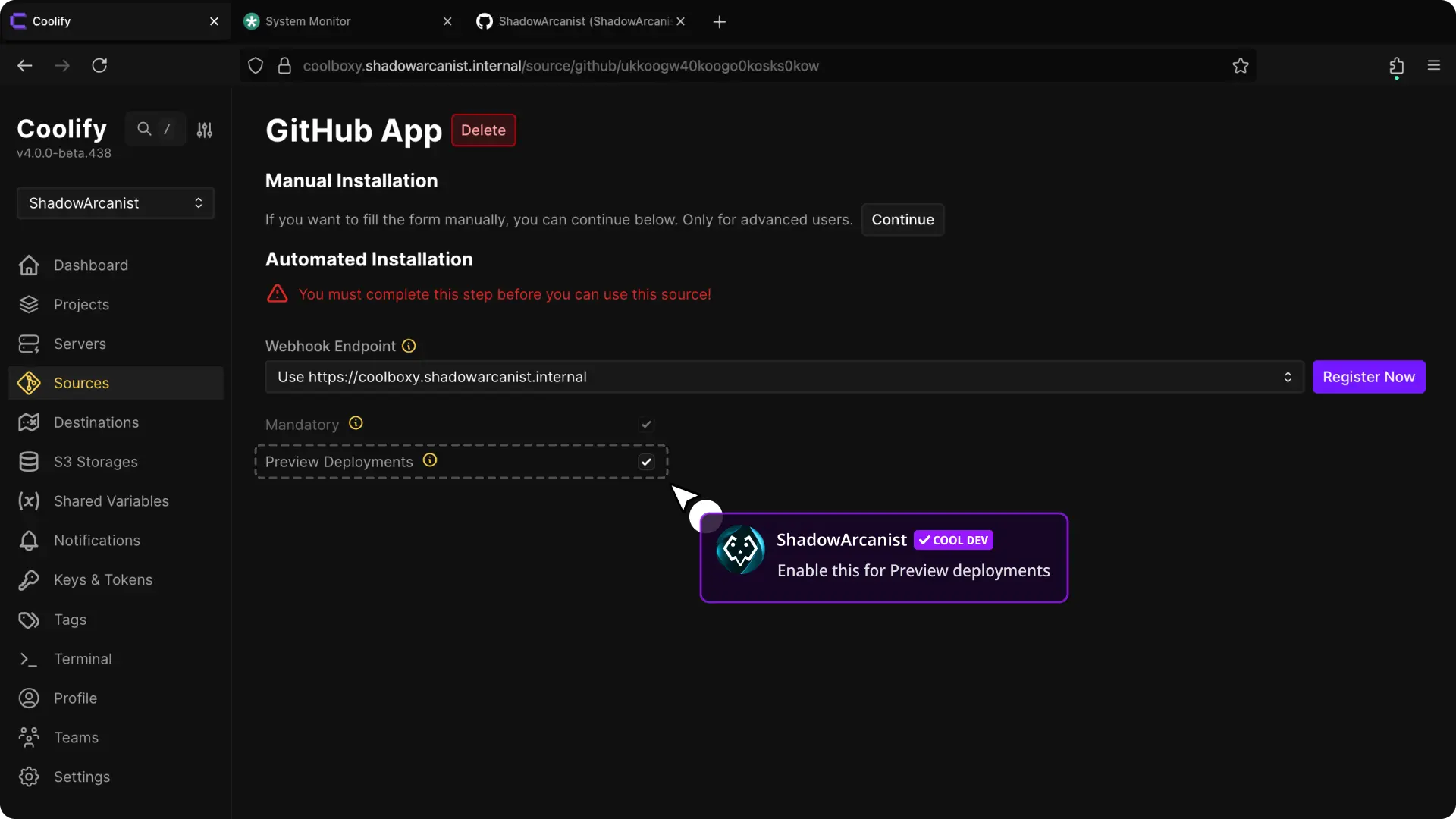
Coolify requests read-and-write access to pull requests and subscribes the app to pull-request events.
Finish the GitHub App installation
Complete the registration and install the GitHub App for the required account and repositories.
Verify the event connection
Open or update a pull request. Open Preview Deployments in Coolify and confirm that the pull request appears.
Update an existing GitHub App
If the GitHub App was created without preview permissions, update it before testing previews.
Open the GitHub App permissions
Open Sources in Coolify, select the GitHub App, open Permissions, then select Update.
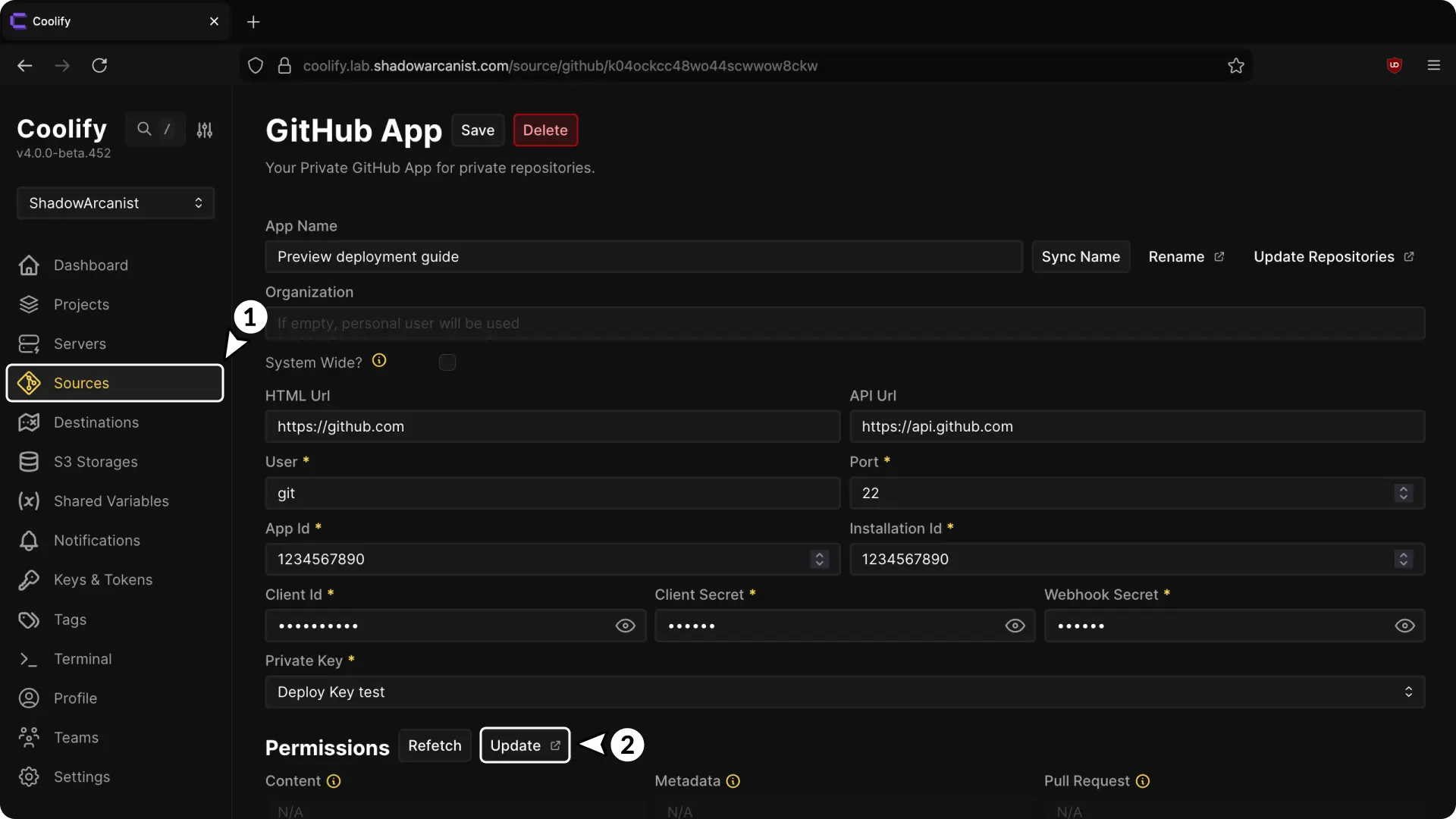
Update GitHub permissions
On GitHub, set Pull requests to Read and write under Repository permissions and subscribe to the Pull request event.
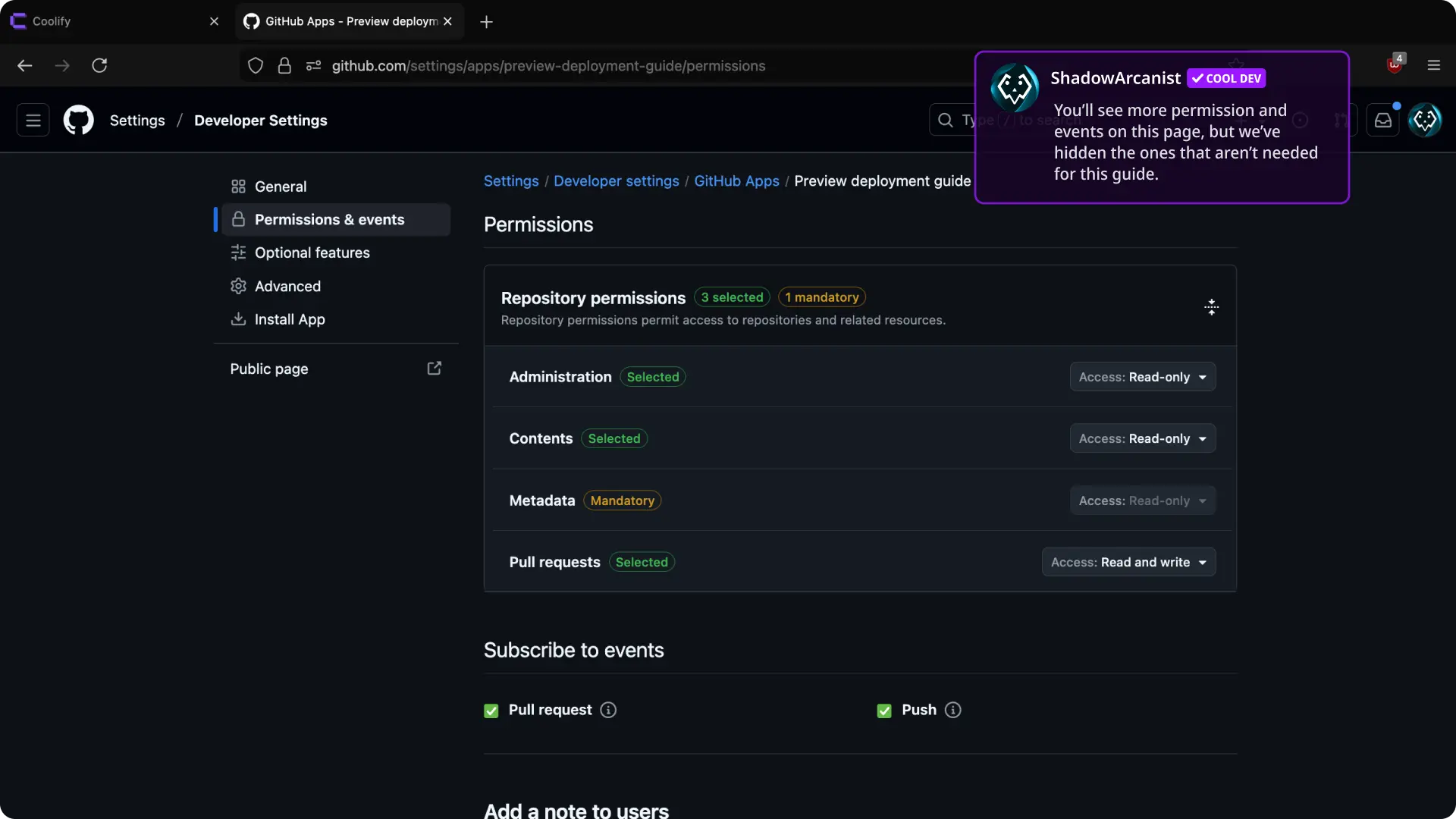
Accept and verify the update
Accept the permission update, then open or update a pull request. Confirm that it appears under Preview Deployments.
Configure preview domains
Open Preview Deployments. Under Preview URL template, URL template controls the generated domain:
{{pr_id}}inserts the pull-request or merge-request number.{{random}}inserts a random value.{{domain}}inserts the production application's domain name.
The default template is {{pr_id}}.{{domain}}.
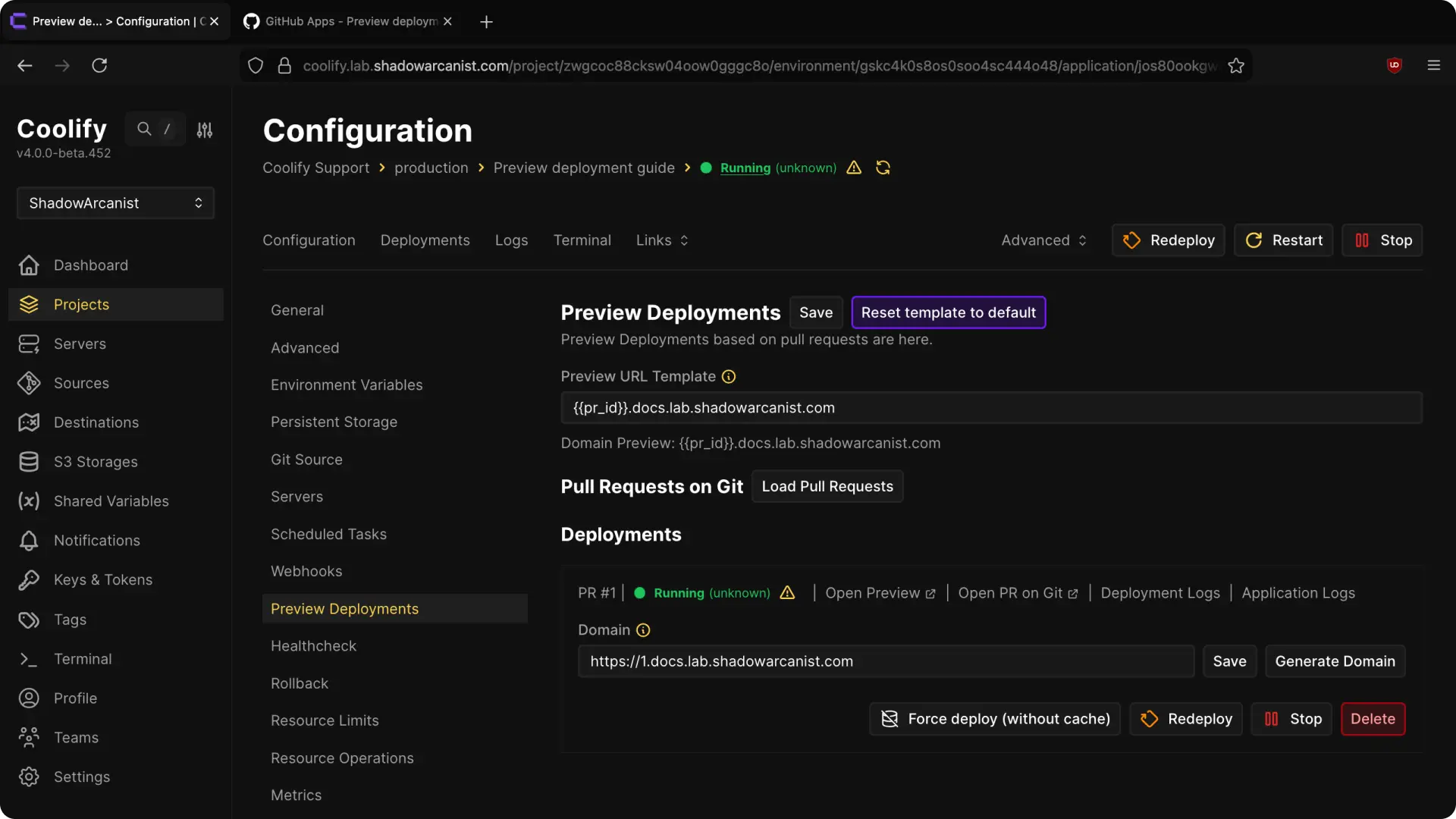
For example, {{pr_id}}.preview.example.com produces 123.preview.example.com for pull request 123.
To use domains such as 123.preview.example.com, create an A or AAAA record for *.preview.example.com that points to the deployment server.
You can also enter a domain for an individual preview. Docker Compose previews can have a separate domain for each service.
Separate preview variables from production
Coolify keeps production and preview environment variables in separate groups.
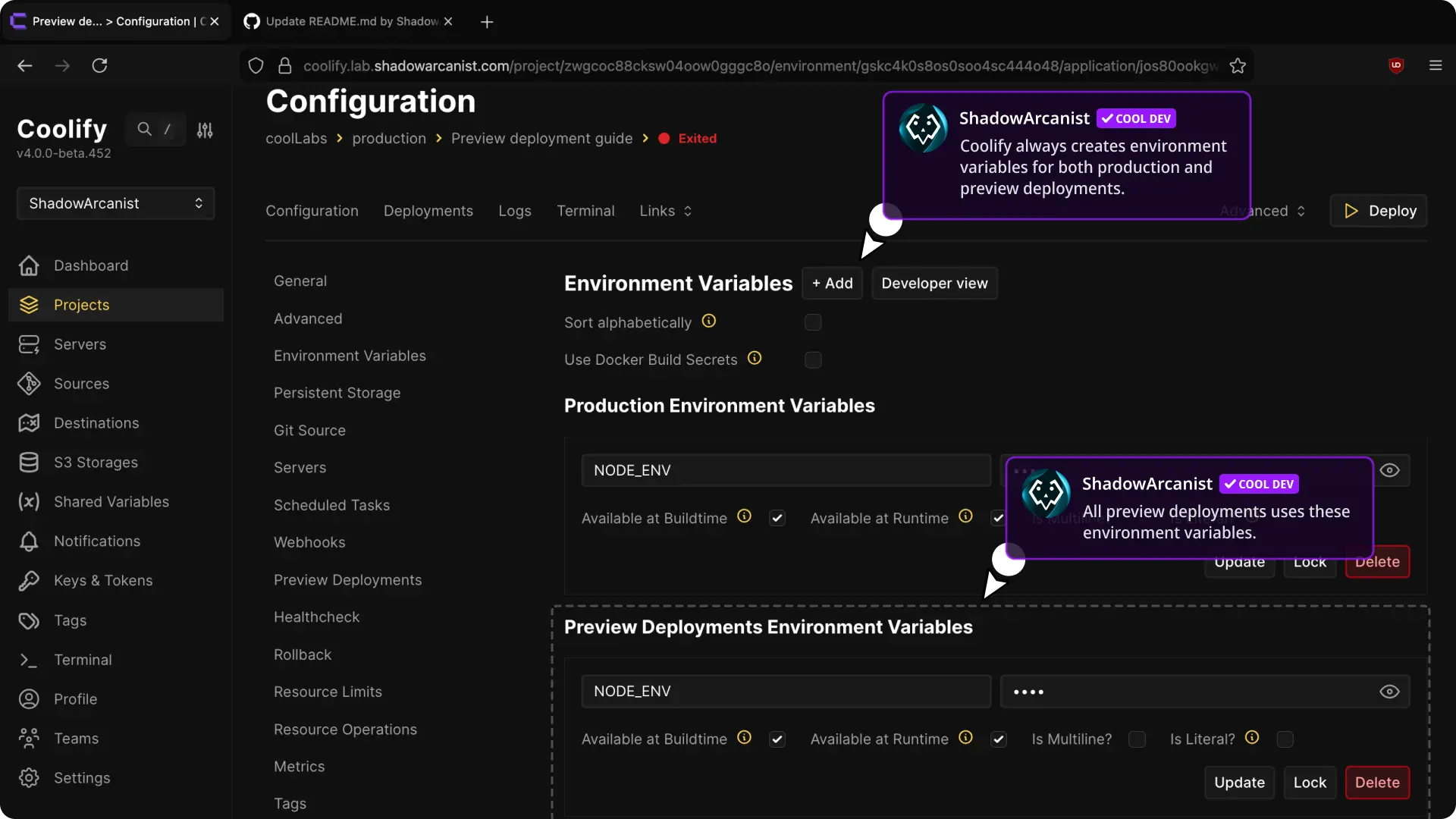
- Production Environment Variables apply to the main deployment.
- Preview Deployment Environment Variables apply to pull-request and merge-request deployments.
Use non-production credentials for preview databases, storage, and external services. A preview container is temporary, but data written to an external service can remain after Coolify deletes the preview.
Follow Environment variables for variable scopes and build-time values.
Load pull requests that were already open
Coolify does not automatically deploy pull requests that were open before previews were enabled.
For a GitHub-based application, open Preview Deployments and select Load Pull Requests. In the Pull requests dialog, select Deploy preview beside each request that needs a preview. Use Configure to prepare a preview without deploying it.
GitHub pull-request comments
A GitHub App can add the preview deployment status and domain to the pull request, then update the comment when the deployment state changes.
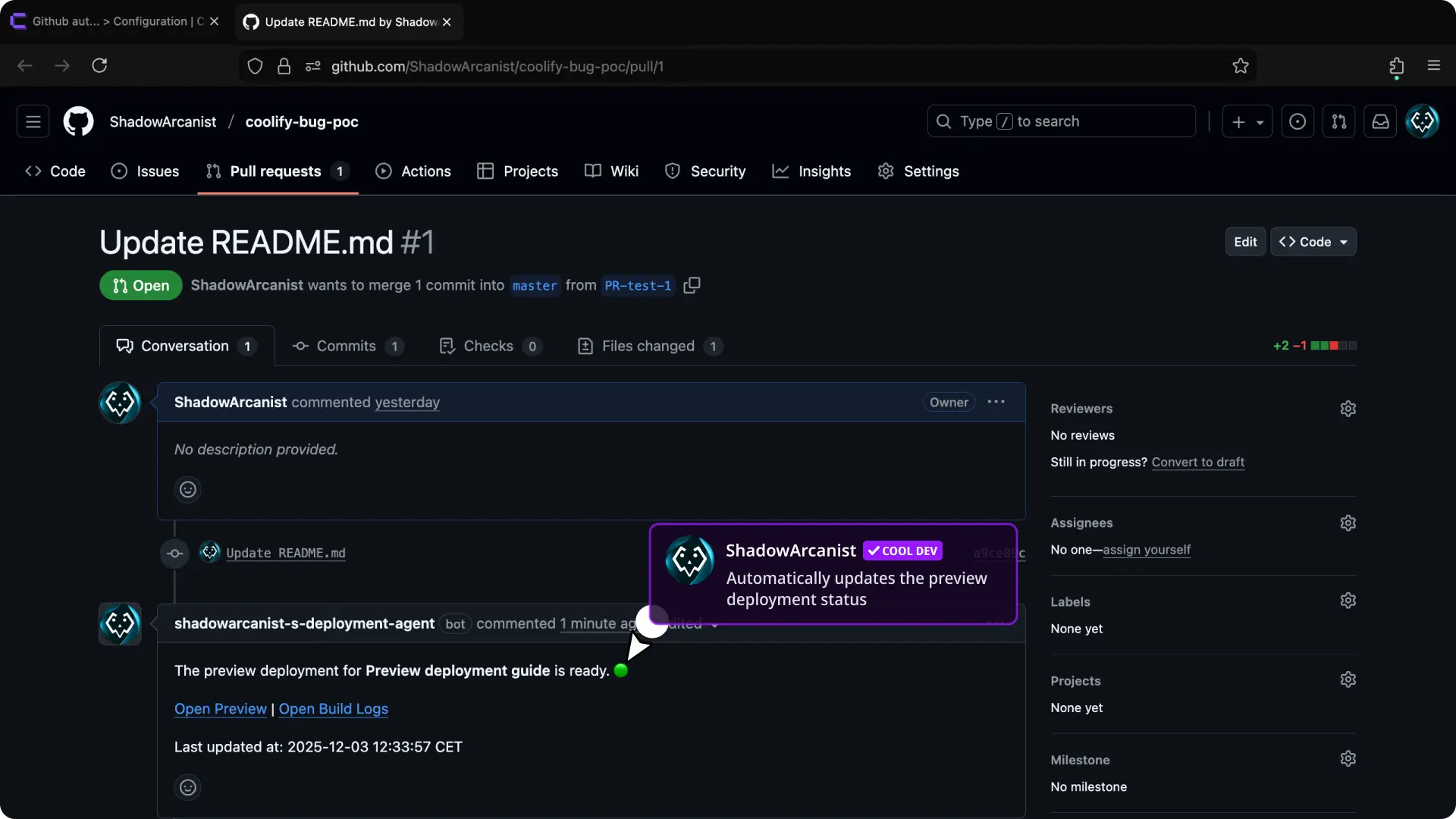
Manual repository webhooks can trigger previews, but automated pull-request comments require a GitHub App with the required permissions.
Deploy a Docker Image preview manually
For a Docker Image application, open Preview Deployments and use Manual preview.
Enter:
- Preview ID: an identifier used in the preview name, domain, logs, and cleanup
- Docker Tag: the image tag to deploy, for example
pr_1234
Select Deploy Preview. This path is useful when an external CI system builds one image tag for each pull request.
Manage a preview
Open Preview Deployments to view each preview. Use Preview links to open its domain or Git request, Preview logs for deployment and runtime logs, and Preview actions for lifecycle actions.
Depending on the preview state, you can:
- select Deploy or Redeploy
- select Force deploy (without cache)
- select Stop to remove its containers and other non-persistent runtime resources
- select Delete to permanently remove the preview deployment
Verify the preview lifecycle
- Open or update a pull request or merge request.
- Confirm that Coolify creates a separate preview deployment.
- Open the preview domain and test the proposed change.
- Close or merge the request.
- Confirm that Coolify removes the automatically created preview.
Manage previews through the API
Use GET /applications/{uuid}/previews to list previews and GET /applications/{uuid}/previews/{pull_request_id} to inspect one. Creating or redeploying a preview requires deploy:
curl --request POST "https://coolify.example.com/api/v1/applications/<application-uuid>/previews" \
  --header "Authorization: Bearer $COOLIFY_TOKEN" \
  --header "Content-Type: application/json" \
  --data '{"pull_request_id":42,"git_type":"github","force":false}'
Use the provider that hosts the request. Bitbucket also requires a commit SHA. Pull request IDs must be positive integers no greater than 2147483647; invalid IDs return a validation error, including in the MCP deploy tool.
POST /deploy with pull_request_id also deploys the pull-request ref for deploy-key and public-repository applications. Gitea previews use the pull request's head commit. The UI's pull-request listing and status updates are available for GitHub App sources.
Inspect deployment history after the request is accepted. Closing or deleting a preview removes only its own containers and Coolify-created networks and volumes.