Dockerfile
Use a Dockerfile when you need exact control over the base image, installed packages, copied files, build stages, runtime user, and default container command.
Coolify can read the Dockerfile from a Git repository or store one directly without Git. During deployment, Coolify builds an image from its instructions, then creates a container with the application's domains, environment variables, storage, networks, health checks, and runtime settings.
Choose where the Dockerfile is stored
| Path | Use it when | Dockerfile location |
|---|---|---|
| Git repository | The build needs application source or other repository files. | The path formed by Base Directory and Dockerfile Location. |
| Dockerfile without Git | The instructions can build an image without checking out repository files. | Stored in Coolify under General > Dockerfile. |
A Dockerfile entered without Git has no repository build context. Its COPY and ADD instructions cannot read application files from a repository.
Deploy from a Dockerfile
Choose the path that matches where the Dockerfile and its build context are stored.
A repository-owned Dockerfile can copy application files from the repository and can use Git-based automatic deployments.
Connect the repository
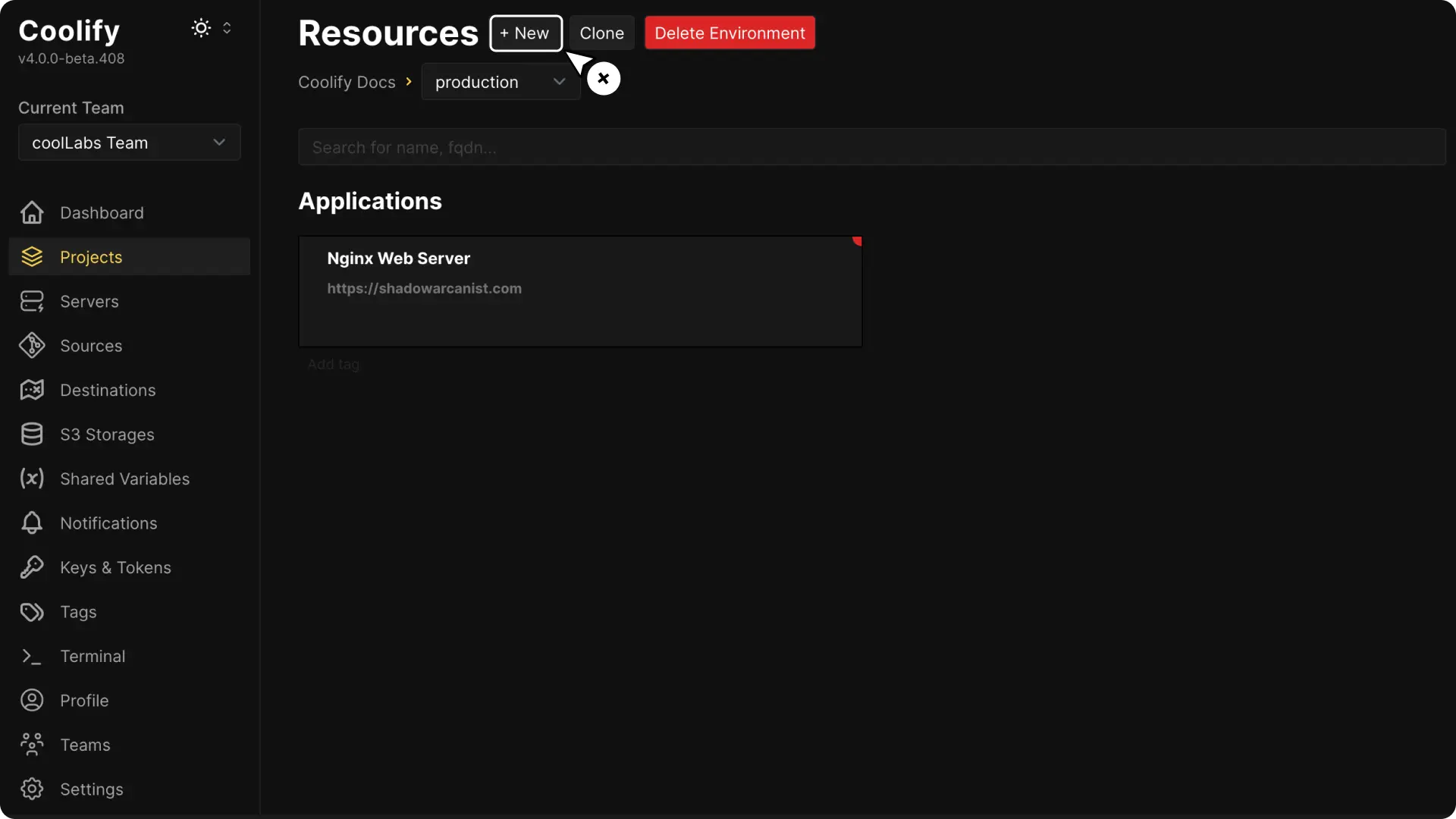
Open the target project and environment, then select + New.
Choose a public repository, deploy key, or supported Git App.
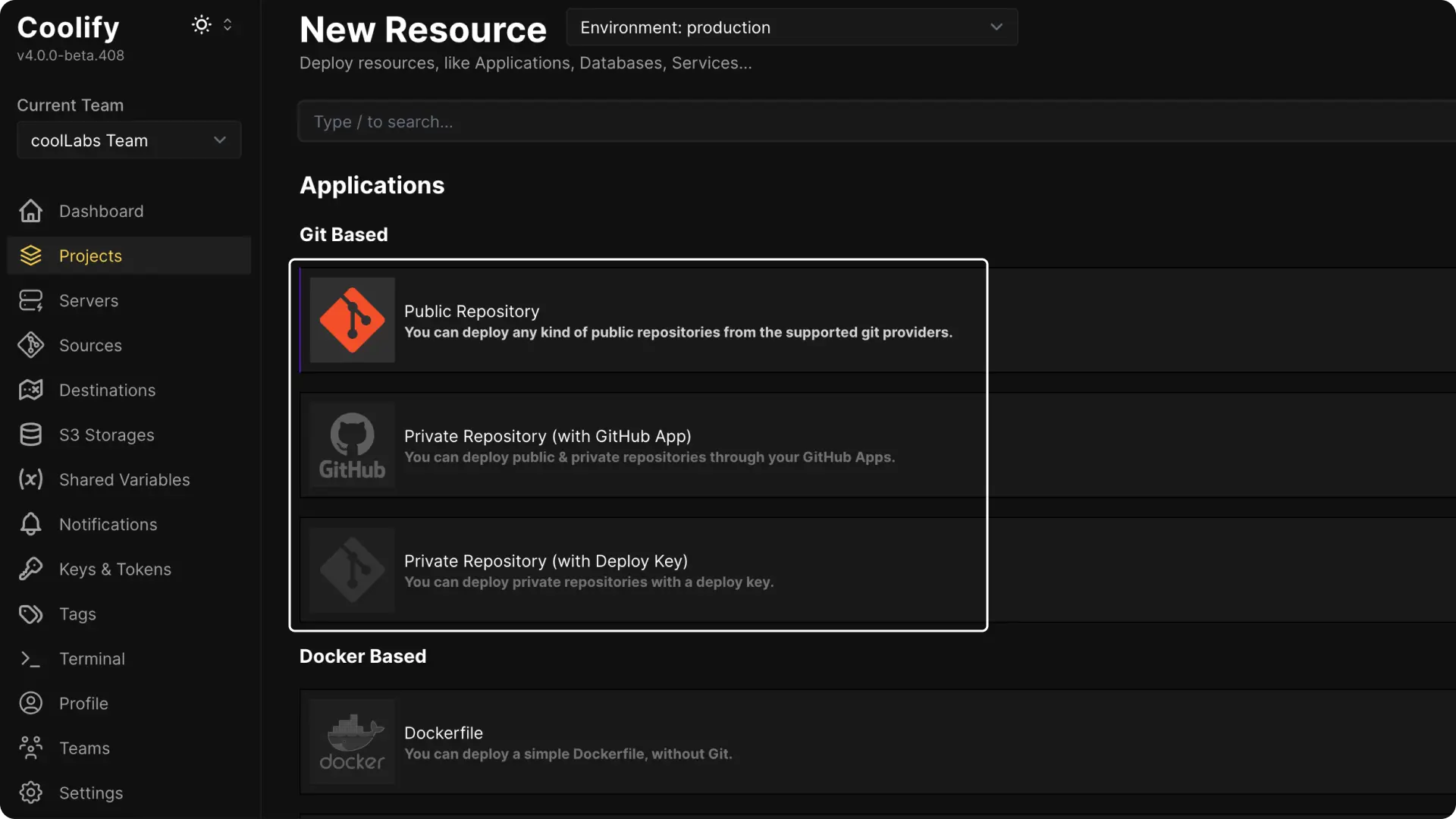
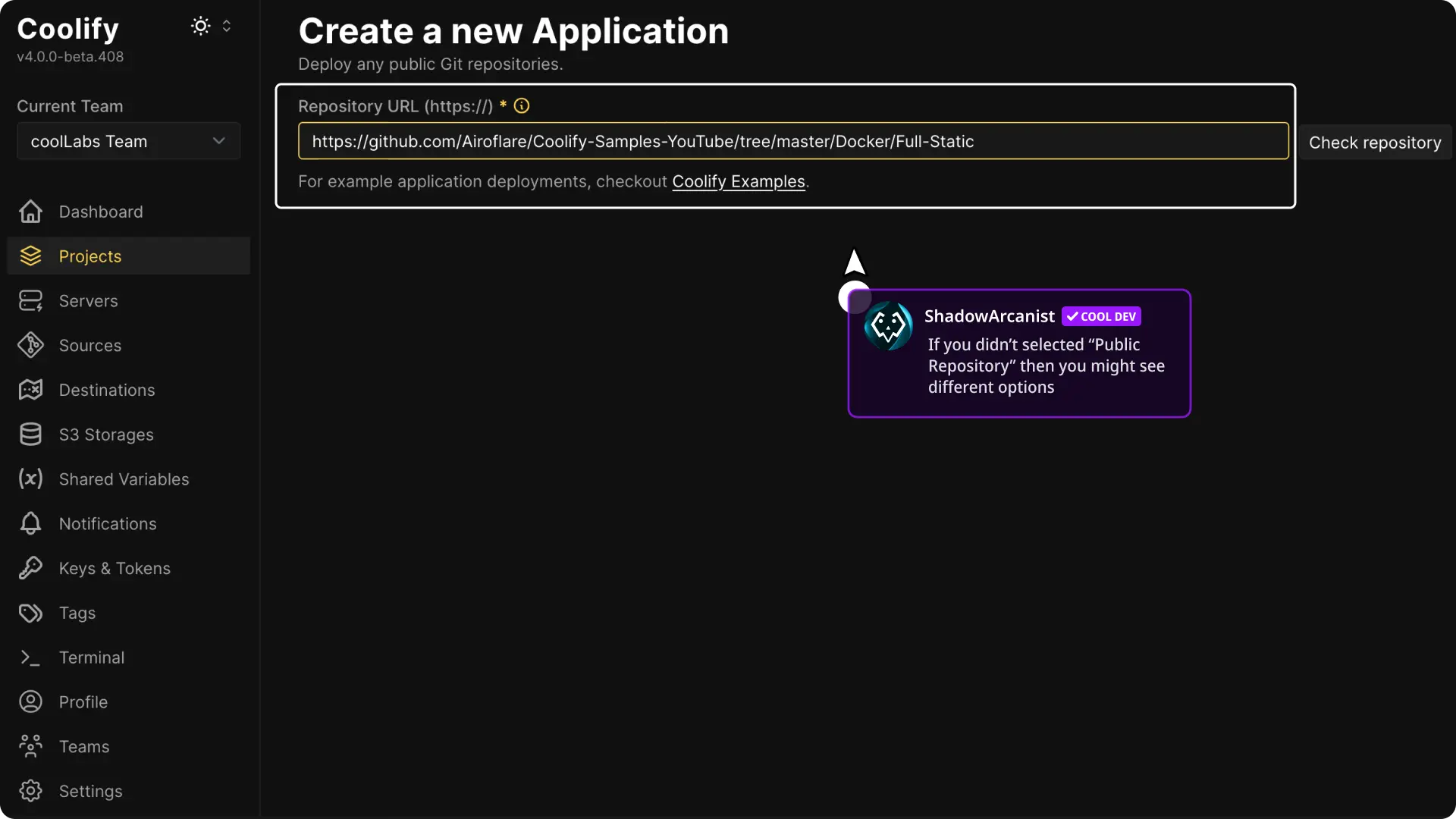
For a public repository, paste its HTTPS URL and select Check Repository.
Select Dockerfile
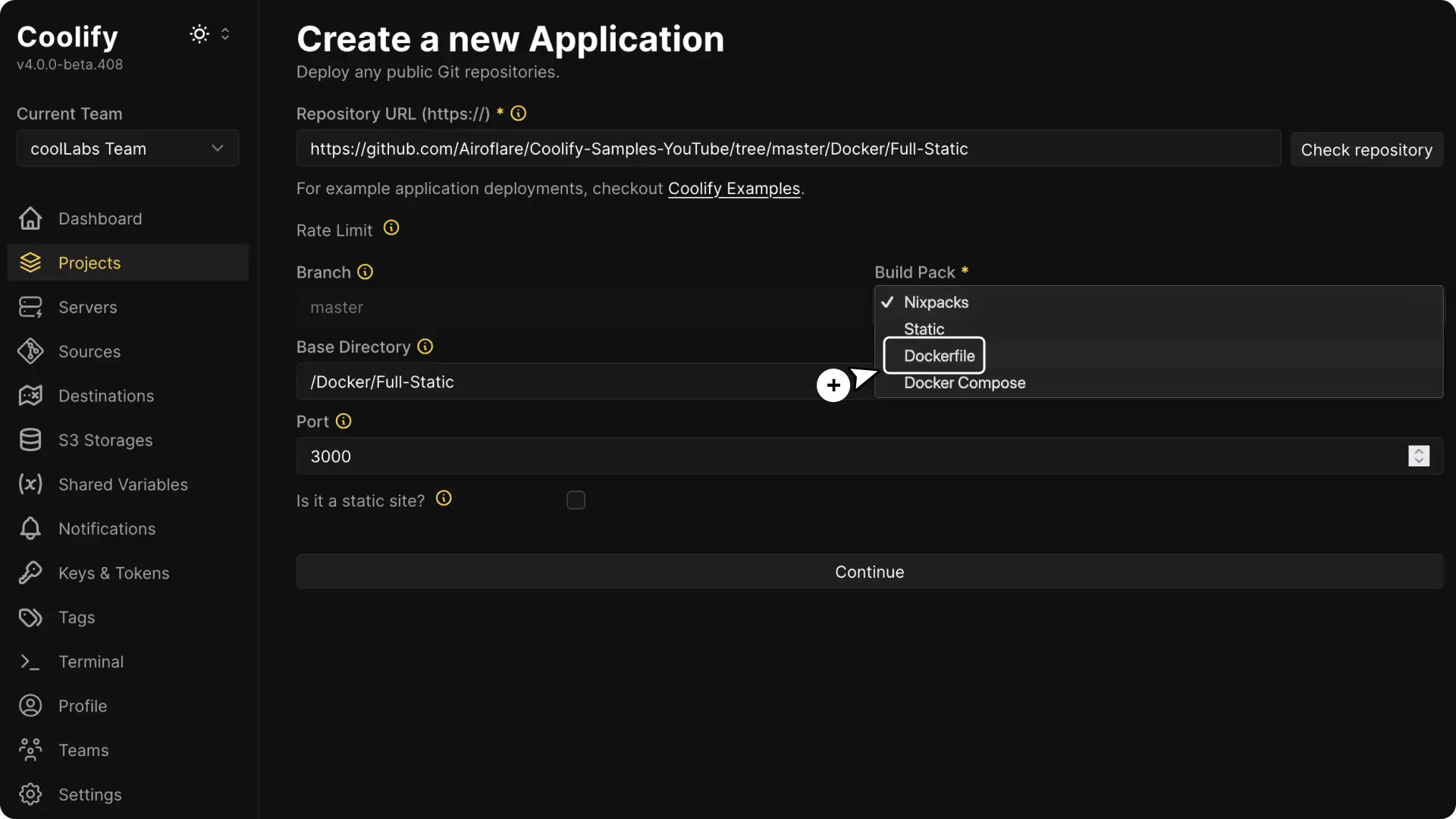
Choose Dockerfile in Build pack during creation. After creation, this choice is Build strategy under General > Build pipeline.
Configure the build context
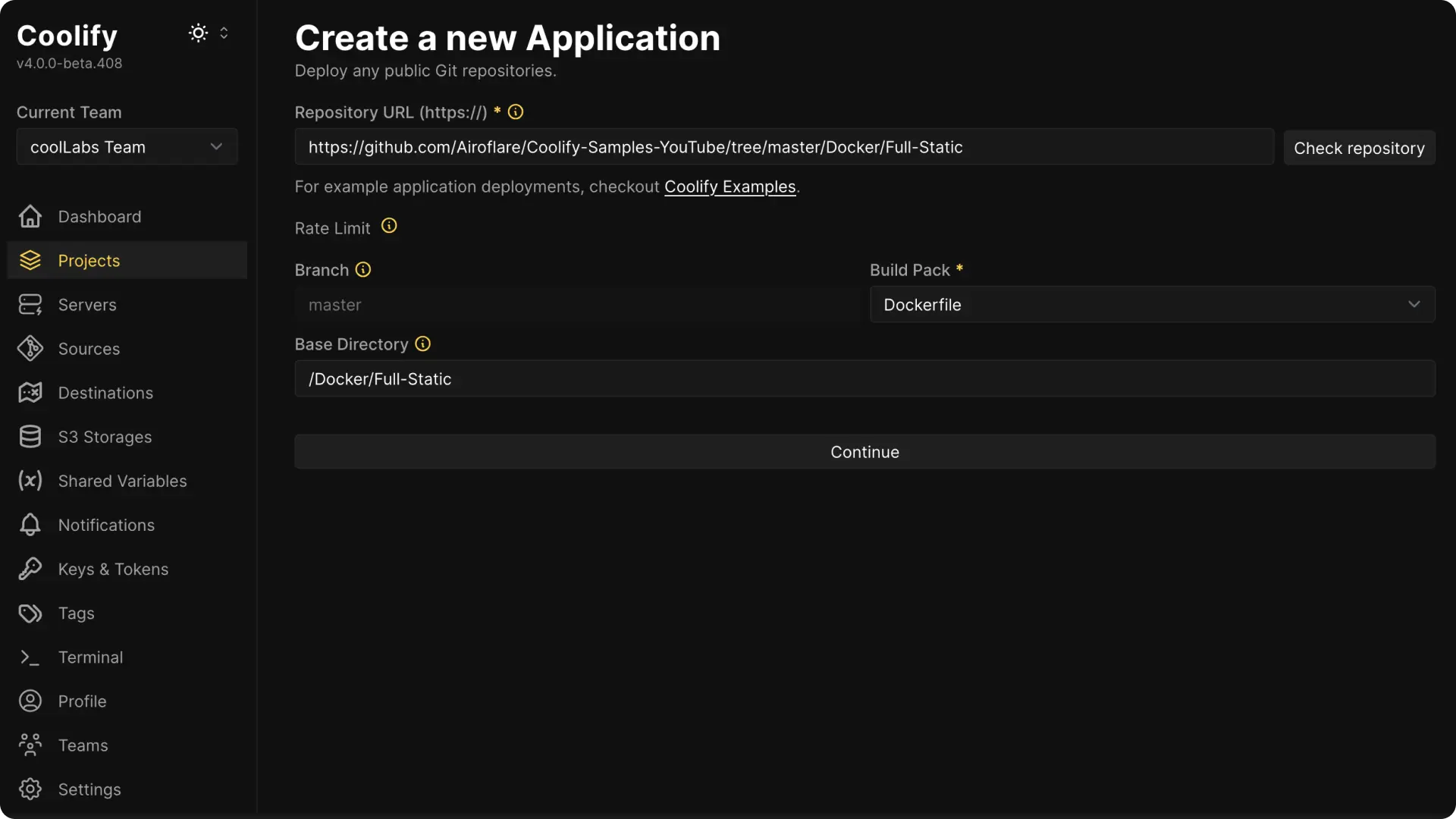
Set Base Directory to the repository directory Docker should use as the build context. Set Dockerfile Location to the Dockerfile path relative to that directory.
Configure the runtime
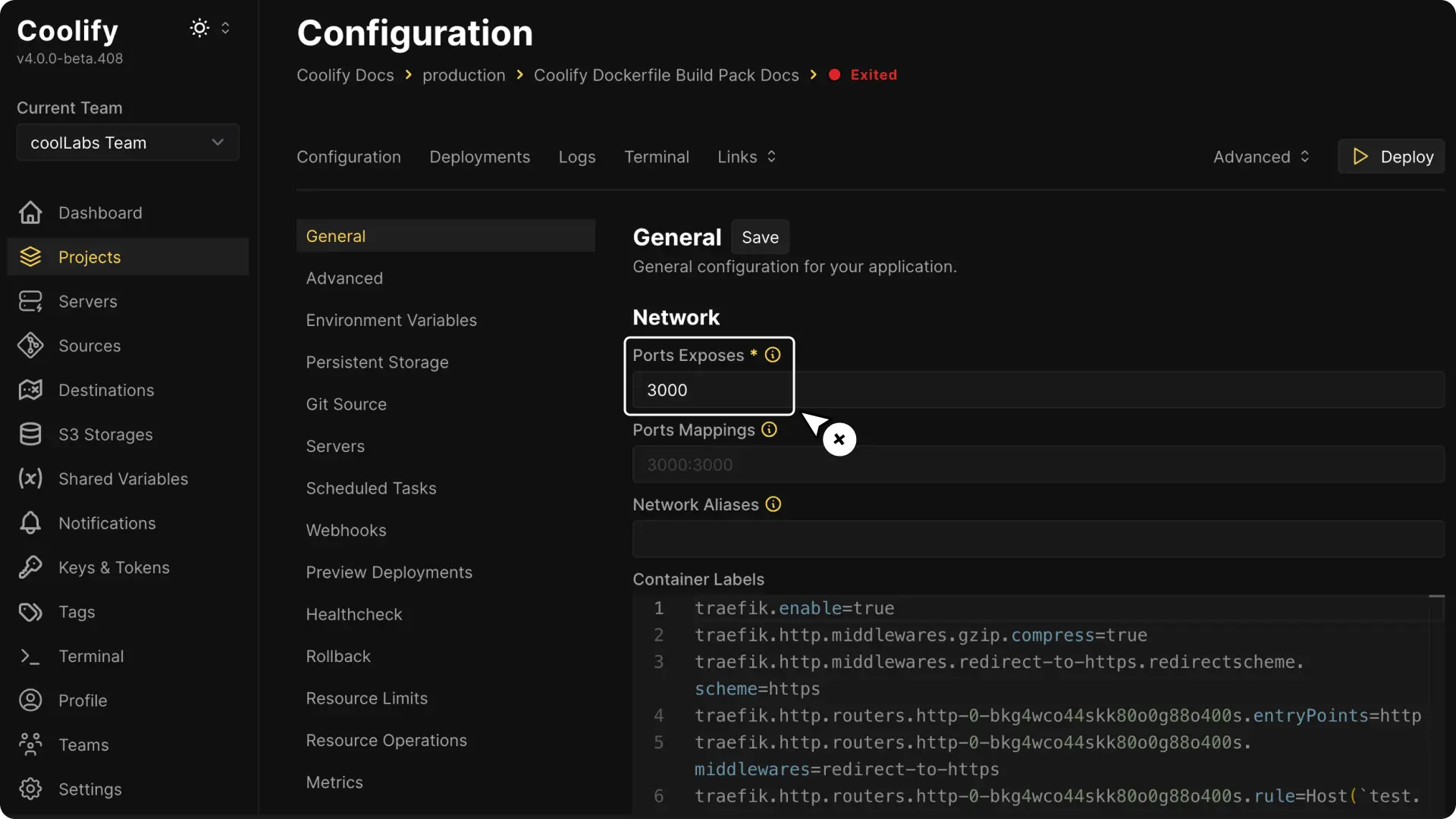
Continue to the application and set Ports Exposes to the internal port used by the process.
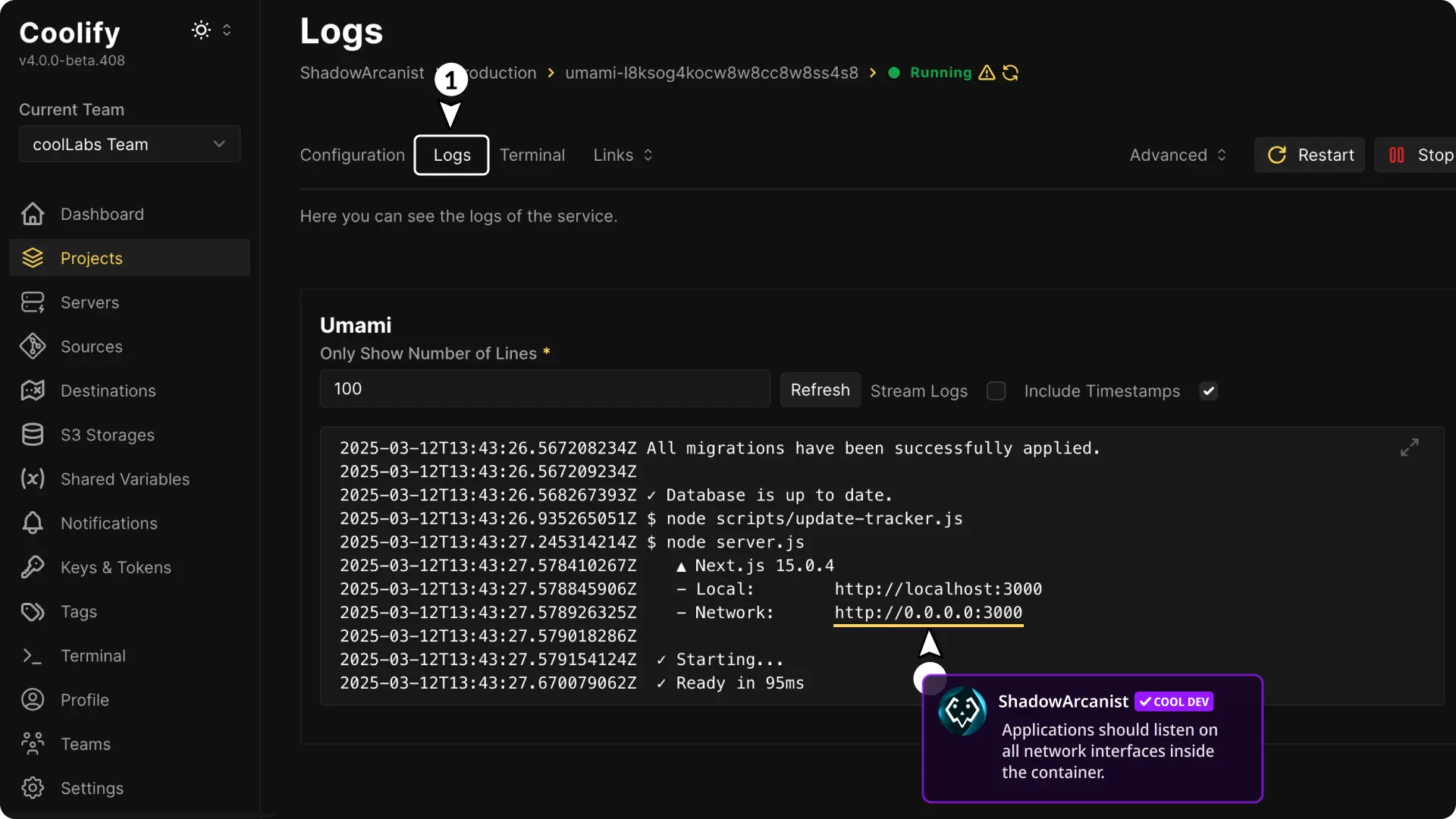
The process must listen on 0.0.0.0, not only 127.0.0.1, for the Coolify proxy to reach it.
Add the required domain, environment variables, and persistent storage. Do not copy production secrets into the Dockerfile or image layers.
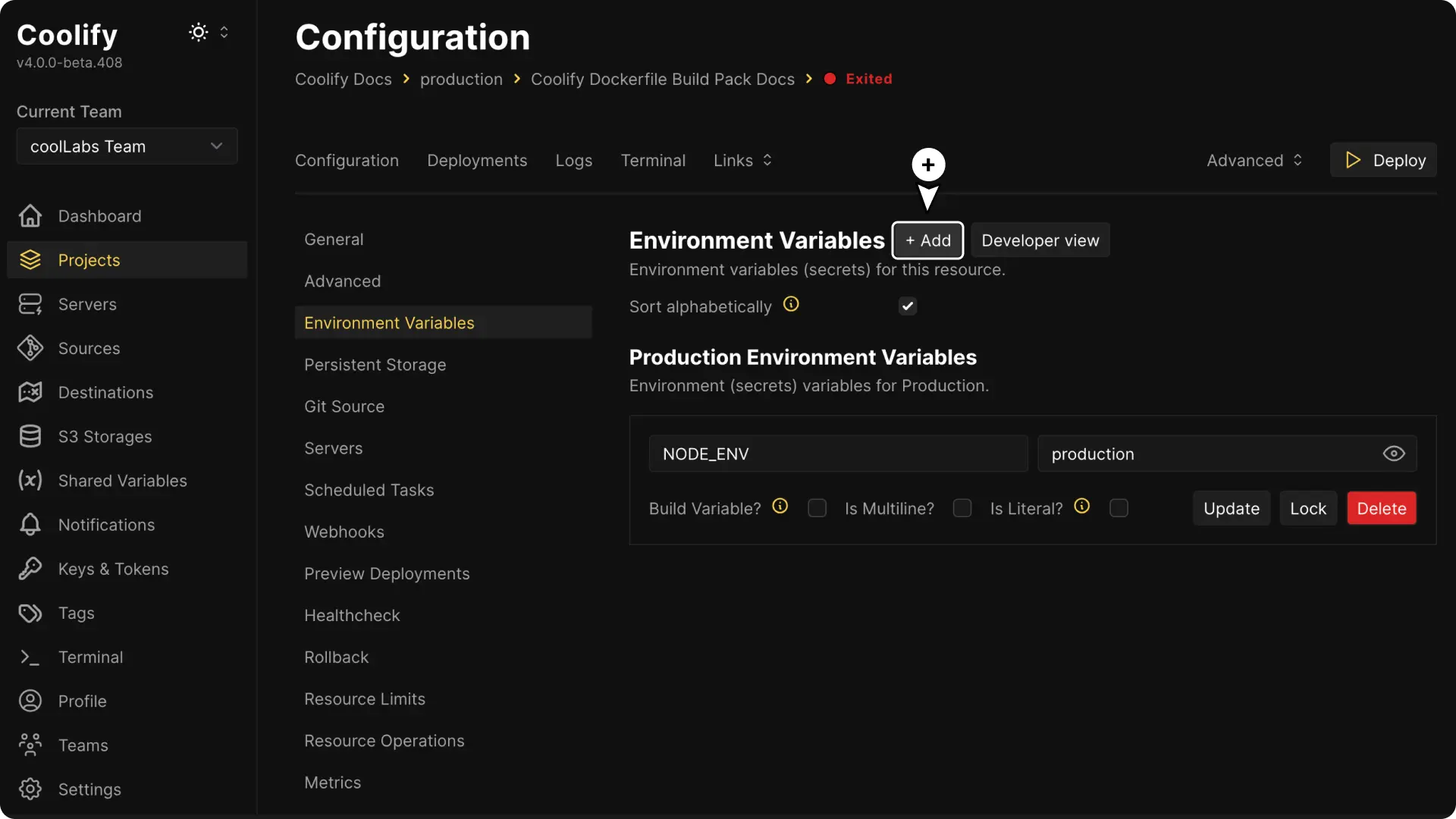
Deploy and verify
Select Deploy and inspect the Docker build stages in the deployment log.
After the container starts, verify the application logs, internal port, health, and public domain.
Build arguments
Coolify can inject configured build variables as Docker build arguments.
Under Advanced > Build, set Build arguments to Managed manually in Dockerfile when the Dockerfile declares and consumes every required ARG itself.
For Git-based Dockerfile applications, SOURCE_COMMIT is excluded from the build by default so commits with unchanged layers can reuse cache. Under Advanced > Build, set Source commit availability to Available during build only when the image contents need the commit value.
Use Build secrets > Docker BuildKit secrets for sensitive build-time values when Docker BuildKit is available. Read Environment variables before passing credentials to a build.
Image health checks
A Dockerfile can define:
HEALTHCHECK --interval=30s --timeout=5s --retries=3 \
  CMD curl --fail http://localhost:3000/health || exit 1
The image must contain the command used by the check.
Alternatively, configure the application under Healthcheck. Read Health checks for precedence and routing behavior.
Deployment commands
Pre-deployment runs in the current application container before replacement. Post-deployment runs in the newly deployed container.
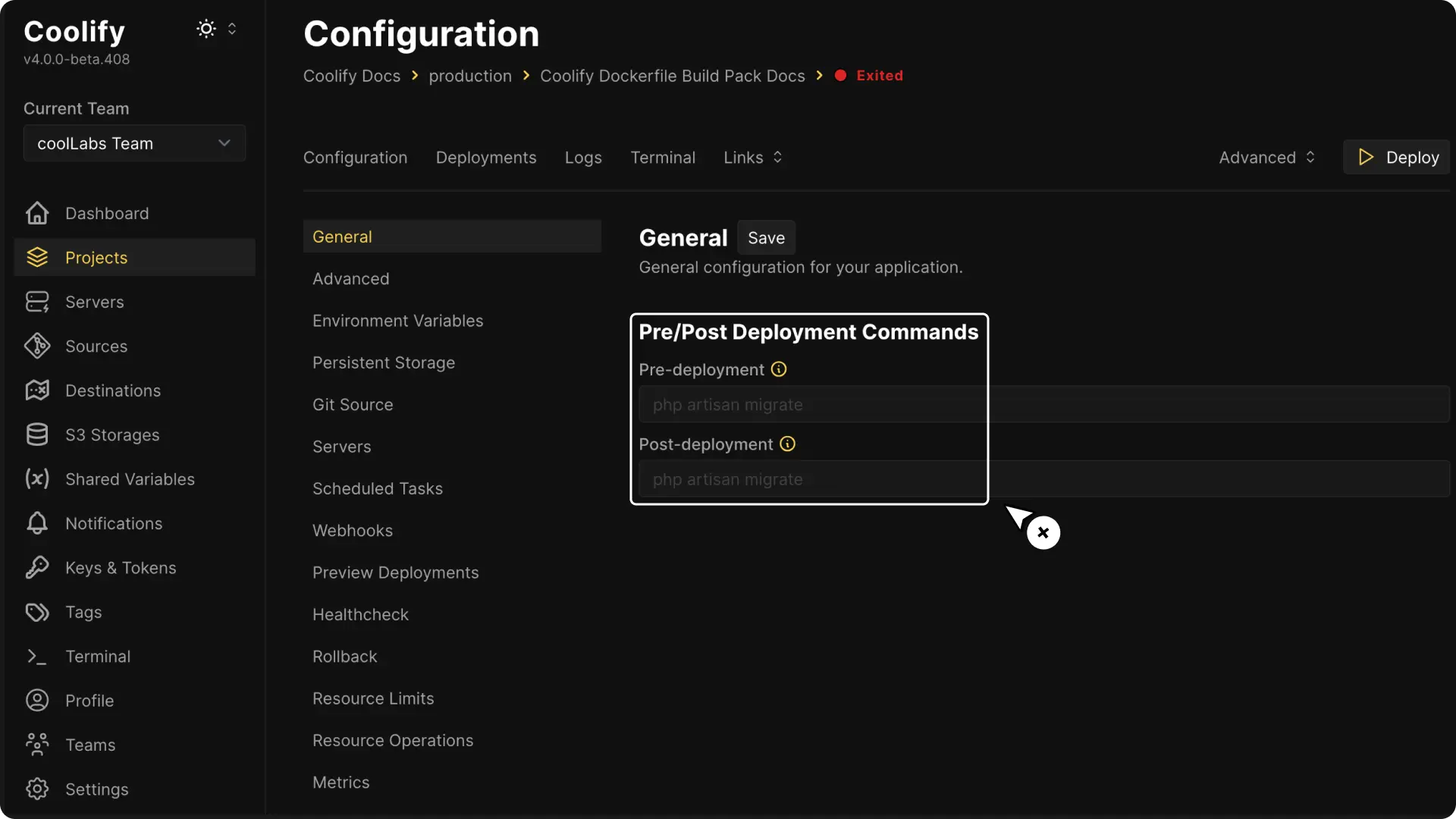
Coolify skips the pre-deployment command when no current container exists, including the first deployment. A failing pre-deployment command stops the deployment.
Coolify marks the deployment complete before running the post-deployment command. A failing post-deployment command is recorded in the deployment log but does not change the successful deployment status.
Use commands that can be run more than once, and test database migrations and other stateful operations against a non-production environment first.
Node.js multi-core scaling
A plain Node.js process uses one CPU core. Read Node.js multi-core scaling when a Node.js or Bun application should use multiple cores from one Dockerfile deployment.
Troubleshoot the runtime
If the build succeeds but the domain fails:
- inspect Runtime Logs for a process exit or bind error
- confirm the process listens on
0.0.0.0 - confirm Ports Exposes contains the internal listening port
- verify the health-check request inside Terminal
- follow No available server when the proxy has no healthy target