
Docker Compose
Coolify supports Docker Compose from a Git repository or from a definition pasted directly into Coolify.
These paths create different resource types:
| Path | Resource created | Compose definition | Git automation |
|---|---|---|---|
| Git repository with the Docker Compose build pack | Application | Stored in the repository. | Supports branch-based deployments, webhooks, and previews. |
| Docker Compose Empty | User-defined Service | Pasted into and stored by Coolify. | Has no Git source, branch, or pull-request events. |
In both paths, the Compose definition controls service images, builds, commands, environment references, volumes, health checks, dependencies, and Compose networking. Coolify parses the definition and adds the configuration required to manage the resource.
Create the Docker Compose resource
Use this path when the Compose definition belongs in version control and deployments should follow repository changes.
Choose the source
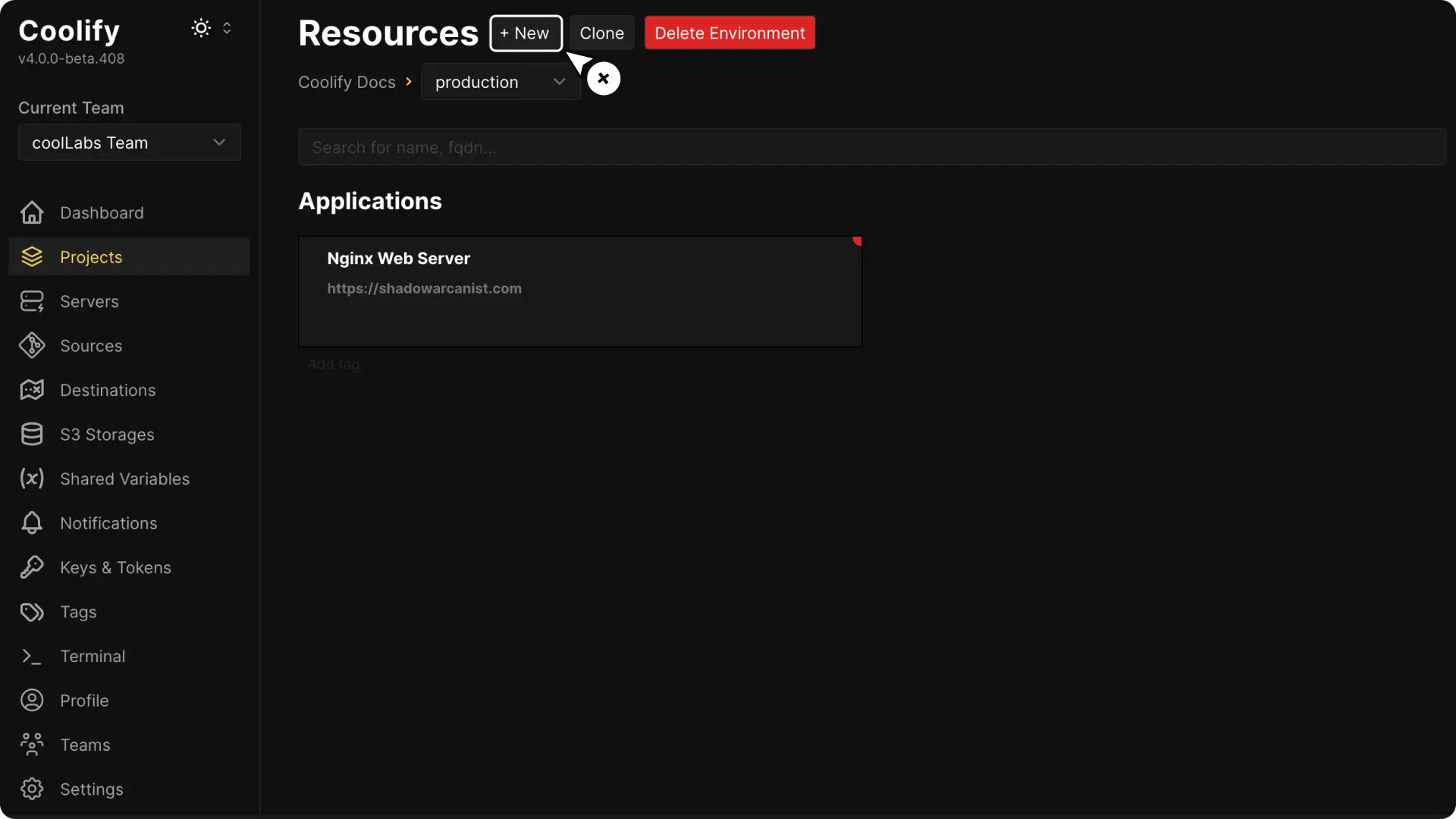
Open the target project and environment, then select + New.
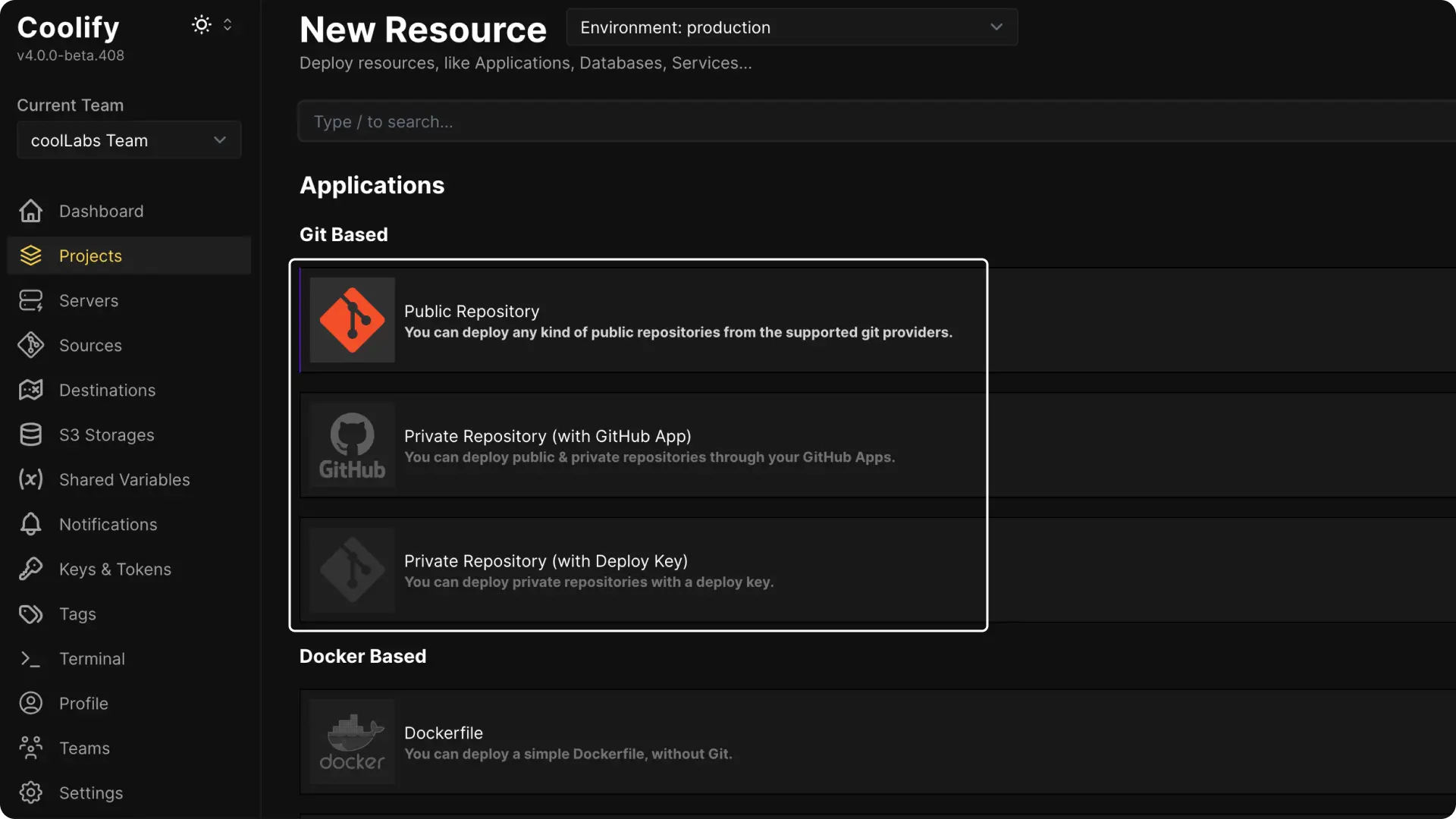
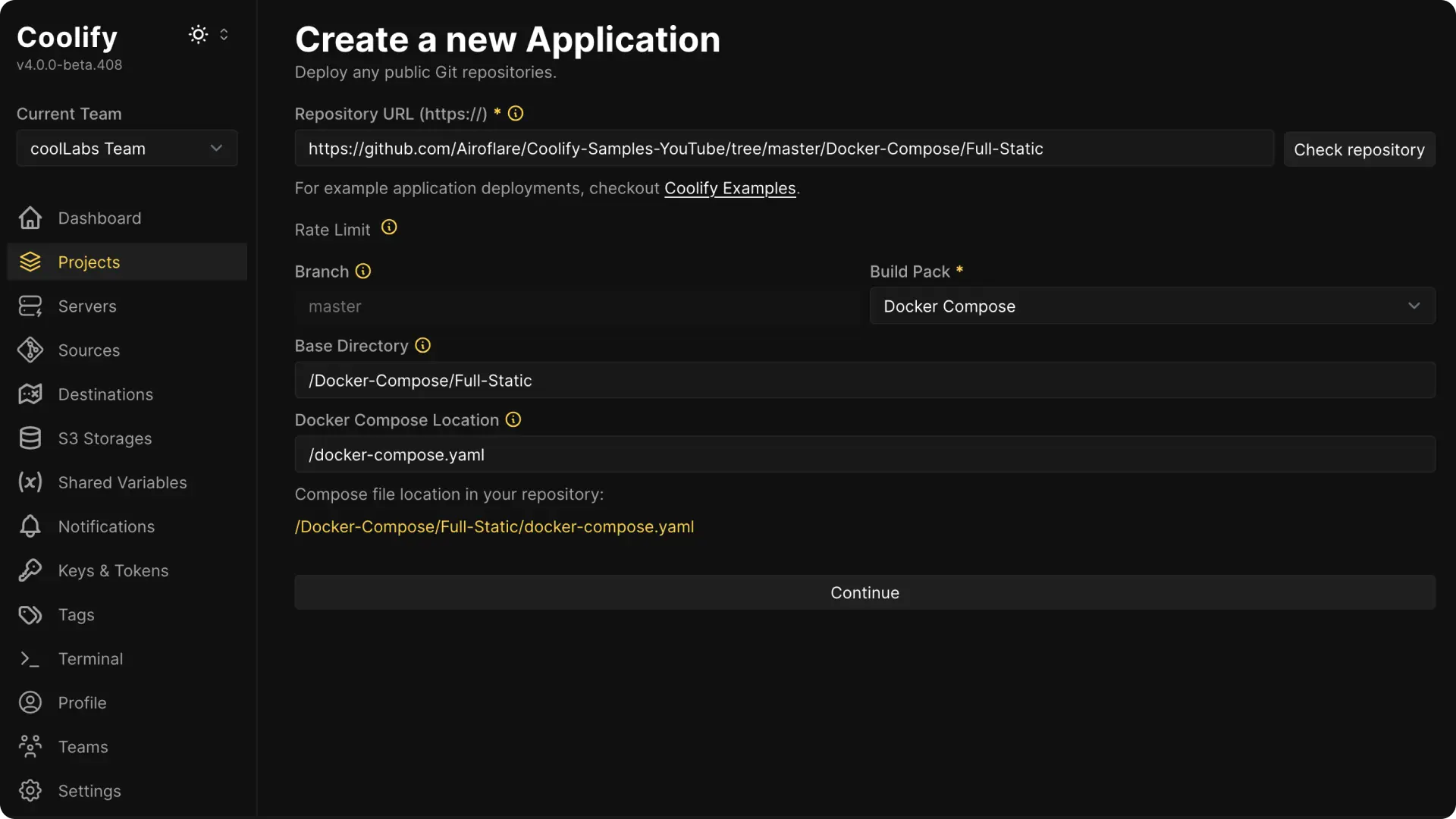
Choose a public repository, deploy key, or supported Git App. The repository must contain the Compose file.
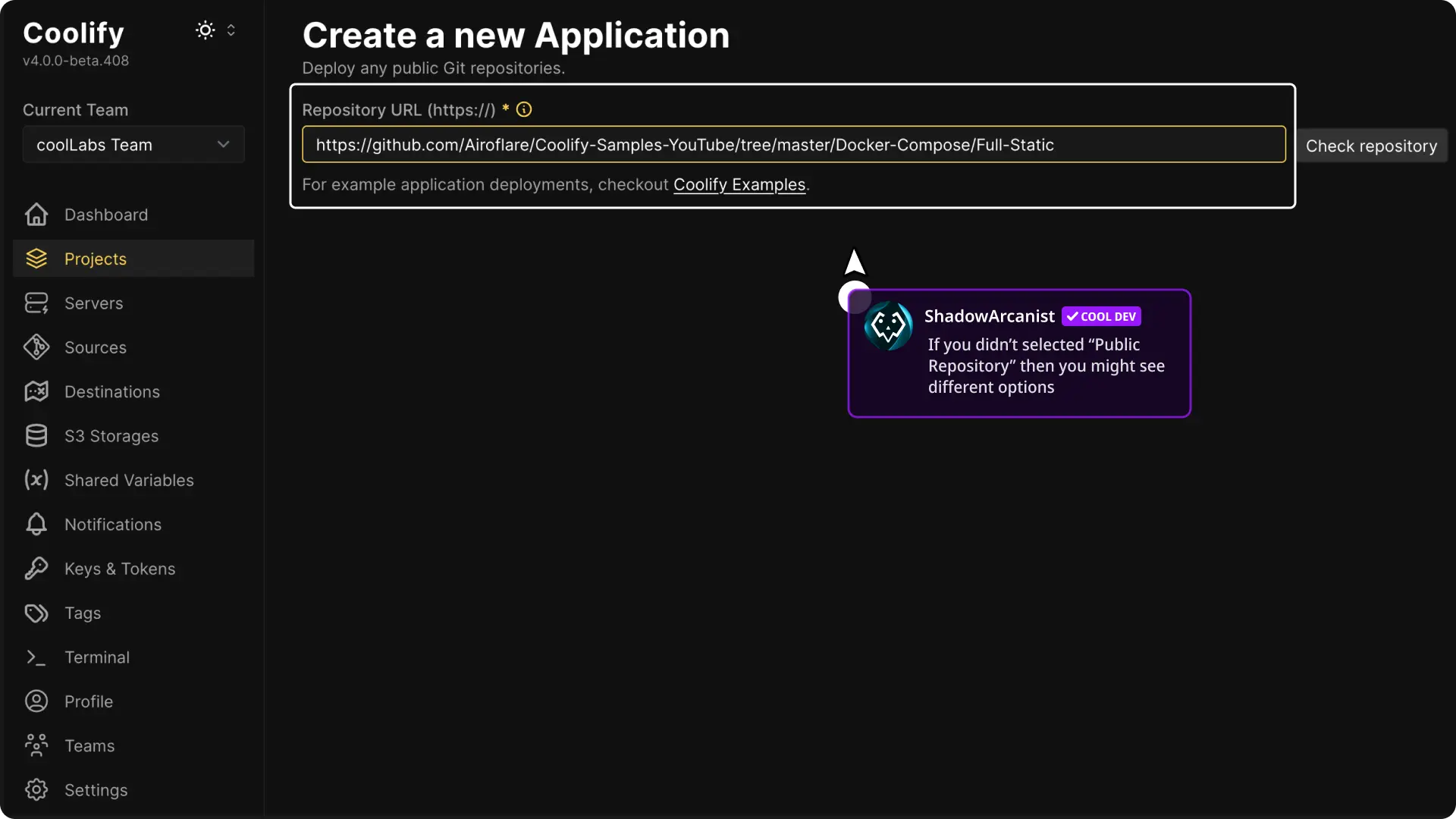
For a public repository, paste its HTTPS URL and select Check Repository.
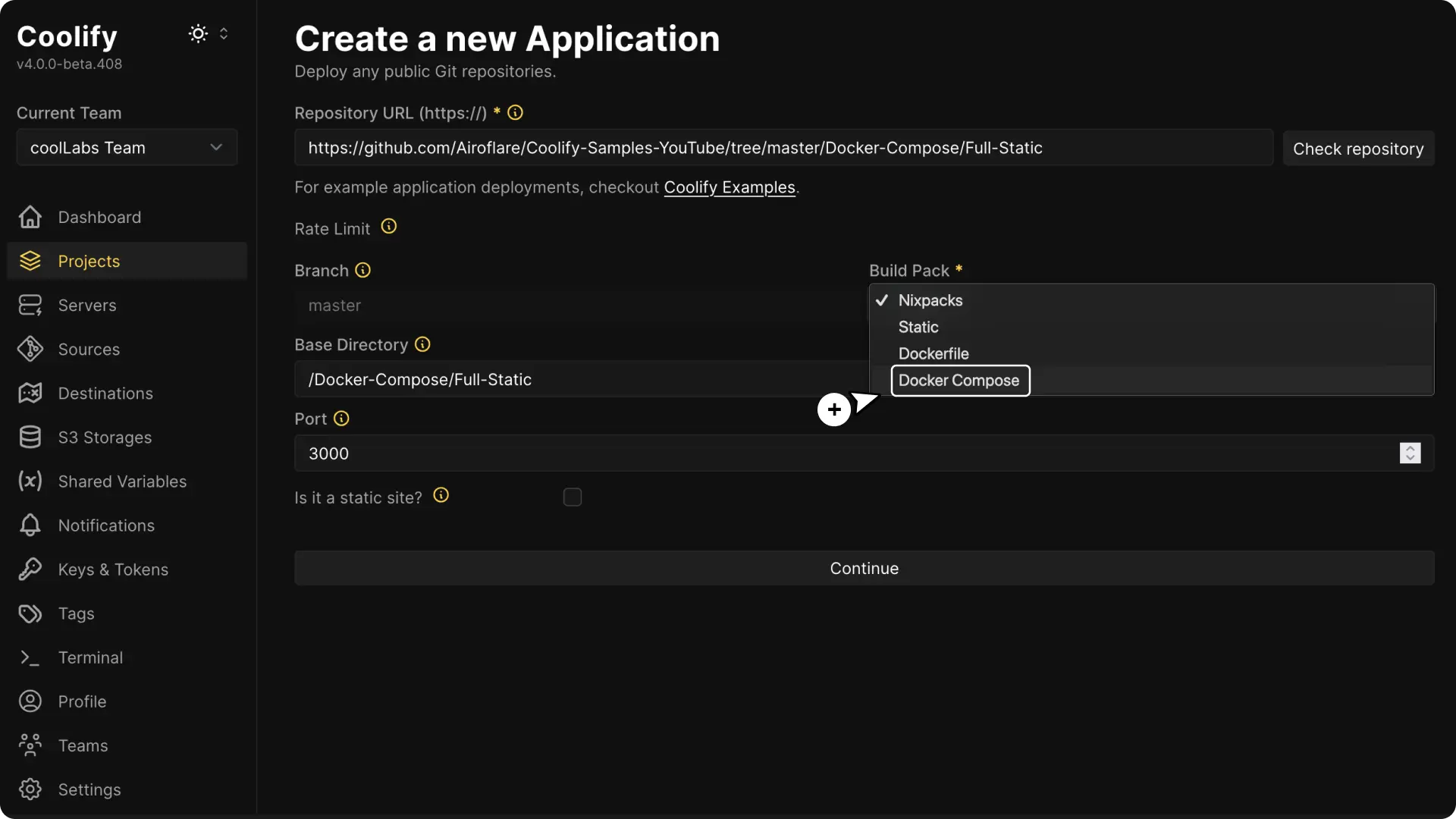
Select Docker Compose
Under General > Build pipeline, select Compose as the Build strategy.
Set:
- Base Directory to the repository directory that contains the application
- Docker Compose Location to the Compose file path relative to the base directory
Coolify combines both values when locating the file.
Load and review the definition
Save the configuration and review Docker Compose Content. For Git-based applications, edit the source file in the repository and reload the application configuration instead of treating the rendered content as the primary copy.
Confirm every service has the required image or build definition, environment references, volumes, and health check.
Configure public services
Open Domains, select Add domain, choose the receiving Service, and enter the protocol, hostname, internal port, and optional path for each HTTP service that should be public.
If the service listens on port 3000, include that internal port in the value:
https://app.example.com:3000The public request still uses normal HTTP or HTTPS ports. The suffix tells the Coolify proxy which container port receives the request.
Deploy and verify
Select Deploy. Open Deployment Logs and wait for the operation to complete.
Verify each public domain and inspect Runtime Logs for services that do not start or become healthy.
Configure the Compose definition
For a Git-based Application, edit the Compose file in the repository and redeploy the selected commit. For Docker Compose Empty, use Edit Compose File in the Service configuration.
Environment variables
Values under a Compose service's environment: section can come directly from the Compose file or from Coolify.
services:
  api:
    environment:
      APP_ENV: production
      DATABASE_URL: ${DATABASE_URL}
APP_ENV is fixed to production in the Compose definition. It is passed to the container, but Coolify does not create an editable variable for it.
${DATABASE_URL} tells Coolify to create DATABASE_URL under the resource's Environment Variables. Enter the connection string there instead of committing it to the Compose file.
Both the list and mapping forms work:
services:
  api:
    environment:
      - DATABASE_URL=${DATABASE_URL}
      - LOG_LEVEL=${LOG_LEVEL:-info}
Defaults and required values
Compose variable operators control what happens when a value has not been entered:
| Syntax | Behavior | Typical use |
|---|---|---|
${VARIABLE} | Creates an empty, editable variable in Coolify. | A value that can be empty or will be supplied later. |
${VARIABLE:-text} | Creates the variable with text as its initial value. Compose uses the fallback when the variable is unset or empty. | An optional setting with a safe default. |
${VARIABLE-text} | Creates the variable with text as its initial value. Compose uses the fallback only when the variable is unset. | A setting where an intentionally empty value must be preserved. |
${VARIABLE:?} | Marks the variable as required. Coolify highlights it when empty and prevents deployment until a value is entered. | A credential or connection value the stack cannot start without. |
${VARIABLE?} | Also marks the variable as required in Coolify. In Compose interpolation, the non-colon form distinguishes an unset value from an empty value. | Prefer ${VARIABLE:?} unless the Compose distinction is intentional. |
For example:
services:
  api:
    environment:
      DATABASE_URL: ${DATABASE_URL}
      LOG_LEVEL: ${LOG_LEVEL:-info}
      API_KEY: ${API_KEY:?}
After Coolify loads the definition, LOG_LEVEL starts with info, while DATABASE_URL and API_KEY wait for values. API_KEY must have a value before the resource can deploy.
Coolify keeps an existing value when the Compose definition is loaded again. Changing LOG_LEVEL from info to debug in the dashboard is not overwritten merely because the Compose file still contains ${LOG_LEVEL:-info}.
Defaults can reference another Compose or generated variable:
services:
  api:
    environment:
      PUBLIC_API_URL: ${PUBLIC_API_URL:-${SERVICE_URL_API}/v1}
Coolify creates PUBLIC_API_URL and retains the nested SERVICE_URL_API reference used by its default. Keep the braces balanced when nesting expressions.
Reuse one variable
Reference the same key anywhere in the definition when several services or fields need one value:
services:
  api:
    environment:
      DATABASE_URL: ${DATABASE_URL}
  worker:
    environment:
      DATABASE_URL: ${DATABASE_URL}
Both containers receive the value saved as DATABASE_URL in Coolify.
The same substitution works in other Compose fields, including a bind-mount source:
services:
  api:
    volumes:
      - /data/${TENANT_NAME}:/app/data
Use a shared variable
Shared variables can be assigned to the corresponding application variable with reference syntax such as {{environment.DATABASE_URL}}.
First declare ${DATABASE_URL} in the Compose definition. Then open Environment Variables and set its value to the shared-variable reference:
DATABASE_URL={{environment.DATABASE_URL}}Read Environment variables for build/runtime scope and secret handling.
Generated stack values
Coolify can generate a domain, username, password, or random value when the Compose definition contains a variable named SERVICE_<TYPE>_<ID>.
<ID> identifies what the value belongs to. For SERVICE_URL and SERVICE_FQDN, use the Compose service name so Coolify can assign the generated domain to that service. Replace hyphens or dots in the service name with underscores in the variable. Reusing the same complete variable name returns the same stored value to every service in the resource.
| Pattern | Generated value | Size |
|---|---|---|
SERVICE_URL_<ID> | URL based on the configured wildcard domain. | Not applicable |
SERVICE_FQDN_<ID> | Domain name from the generated URL, without the scheme. | Not applicable |
SERVICE_USER_<ID> | Random alphanumeric username. | 16 characters |
SERVICE_LOWERCASEUSER_<ID> | Random lowercase alphanumeric username. | 16 characters |
SERVICE_PASSWORD_<ID> | Random password without symbols. | 32 characters |
SERVICE_PASSWORD_64_<ID> | Random password without symbols. | 64 characters |
SERVICE_PASSWORDWITHSYMBOLS_<ID> | Random password with symbols. | 32 characters |
SERVICE_PASSWORDWITHSYMBOLS_64_<ID> | Random password with symbols. | 64 characters |
SERVICE_BASE64_<ID> or SERVICE_BASE64_32_<ID> | Random alphanumeric string. Despite its name, this value is not Base64-encoded. | 32 characters |
SERVICE_BASE64_64_<ID> | Random alphanumeric string, not Base64-encoded. | 64 characters |
SERVICE_BASE64_128_<ID> | Random alphanumeric string, not Base64-encoded. | 128 characters |
SERVICE_REALBASE64_<ID> or SERVICE_REALBASE64_32_<ID> | Base64 encoding of random bytes. | 32 random bytes before encoding |
SERVICE_REALBASE64_64_<ID> | Base64 encoding of random bytes. | 64 random bytes before encoding |
SERVICE_REALBASE64_128_<ID> | Base64 encoding of random bytes. | 128 random bytes before encoding |
SERVICE_HEX_32_<ID> | Random hexadecimal string. | 32 characters |
SERVICE_HEX_64_<ID> | Random hexadecimal string. | 64 characters |
SERVICE_HEX_128_<ID> | Random hexadecimal string. | 128 characters |
Naming generated variables
Underscores are allowed in ordinary environment variable names, such as DATABASE_PASSWORD. In Coolify's magic variables, some underscores separate parts that the parser uses to choose what to generate:
SERVICE_PASSWORD_64_DB
│       │        │  └─ Identifier: DB
│       │        └──── Size: 64 characters
│       └───────────── Type: PASSWORD
└───────────────────── Coolify magic-variable prefix

SERVICE_URL_API_3000
│       │   │   └───── Internal port: 3000
│       │   └───────── Compose service: api
│       └───────────── Type: URL
└───────────────────── Coolify magic-variable prefix
For generated usernames, passwords, and random values, keep <ID> as a single token without underscores. Use DBPASSWORD, for example, rather than DB_PASSWORD. Adding an underscore can change the parsed type or size instead of extending the identifier.
| Example | Meaning |
|---|---|
DATABASE_PASSWORD | Ordinary variable. Underscores are allowed; Coolify does not generate a value from this name. |
SERVICE_PASSWORD_DBPASSWORD | Generates a password for identifier DBPASSWORD. |
SERVICE_PASSWORD_64_DBPASSWORD | Generates a 64-character password for that identifier. |
SERVICE_PASSWORD_DB_PASSWORD | Incorrect password-generator name: DB_PASSWORD is not a single identifier token. |
SERVICE_URL_API_3000 | Generates a URL for Compose service api, routed to internal port 3000. |
URL and FQDN names follow service-name normalization instead: a Compose service named my-api or my.api is represented as MY_API in the variable name. This is separate from the identifier rule for generated credentials. A final numeric segment in a URL/FQDN name is interpreted as a port.
Generate and reuse credentials by referencing the generated names:
services:
  database:
    image: postgres:17
    environment:
      POSTGRES_USER: ${SERVICE_USER_POSTGRES}
      POSTGRES_PASSWORD: ${SERVICE_PASSWORD_64_POSTGRES}

  api:
    image: example/api:latest
    environment:
      DATABASE_USER: ${SERVICE_USER_POSTGRES}
      DATABASE_PASSWORD: ${SERVICE_PASSWORD_64_POSTGRES}
      SESSION_SECRET: ${SERVICE_REALBASE64_64_API}
Coolify generates one PostgreSQL username and password, then supplies the same pair to both services. The API receives a separate Base64-encoded session secret.
Generate domains for services
SERVICE_URL_<ID> includes the scheme. SERVICE_FQDN_<ID> contains the domain name without the scheme. Add a numeric suffix when the proxy should route to a specific internal container port, and assign a path as the variable value when the generated URL needs a path:
services:
  api:
    environment:
      SERVICE_URL_API_3000: /v1
      PUBLIC_API_URL: ${SERVICE_URL_API_3000}
      PUBLIC_API_HOST: ${SERVICE_FQDN_API_3000}
With a configured wildcard domain, Coolify generates the URL for the resource, appends /v1, and configures routing to port 3000 inside the api container. The public URL still uses the normal HTTP or HTTPS port.
Use the matching service name in each generated domain variable:
services:
  frontend:
    environment:
      SERVICE_URL_FRONTEND: /
  api:
    environment:
      SERVICE_URL_API_8080: /v1
Generated values persist between deployments and appear under Environment Variables. Passwords and random values can be edited there. Coolify manages the generated URL and FQDN values from the resource's domain configuration.
Storage
Define Compose-owned volumes in the Compose file:
services:
  app:
    image: example/app:latest
    volumes:
      - app-data:/app/data

volumes:
  app-data:
Coolify displays parsed storage under Persistent Storage, but Compose-owned fields are read-only there. Change them in the Compose definition.
Volumes marked external: true use their declared Docker names. Existing resources retain previously renamed volumes; review the deployment log and storage page before migrating data to the external volume. Preview deployments retain their own volume. Coolify preserves driver, driver_opts, and labels when renaming managed volumes.
Relative bind sources resolve from the resource directory, including supported ../ sources. Storage paths are validated; managed file paths must remain within the resource directory. Preview deletion removes only networks and volumes Coolify created for that preview.
Coolify also supports is_directory: true and content: extensions for repository-relative bind sources. Use these only when the deployment must create the directory or file.
For a file bind mount, create the source file before deployment or use content: so Coolify creates it. When the file comes from the Git repository, enable Preserve repository during deployment under General > Build pipeline so it remains available in the deployment directory.
If Docker receives a missing file source, it can create a directory at that path. The container then fails to start with an error such as not a directory: unknown.
Create a repository-relative directory before the container starts:
services:
  filebrowser:
    image: filebrowser/filebrowser:latest
    volumes:
      - type: bind
        source: ./srv
        target: /srv
        is_directory: true
Create a repository-relative file with predefined content:
services:
  database:
    image: postgres:17
    volumes:
      - type: bind
        source: ./init/99-roles.sql
        target: /docker-entrypoint-initdb.d/99-roles.sql
        content: |
          CREATE ROLE app;
Read Persistent storage before choosing paths or backup behavior.
If a file bind mount fails with not a directory: unknown, inspect the source path on the deployment server. Confirm that it exists as a file rather than a directory, then redeploy the resource.
Health checks
Define health checks in the image Dockerfile or Compose service. Git-based Docker Compose Applications do not use the standard Application Healthcheck page, and user-defined Services also use the checks from their Compose definition.
services:
  api:
    image: example/api:latest
    healthcheck:
      test: ["CMD", "curl", "--fail", "http://localhost:3000/health"]
      interval: 30s
      timeout: 5s
      retries: 3
Use exclude_from_hc: true for a one-time service, such as a migration container, that should not determine the overall application health.
Compose networking
Coolify creates a resource-specific network for the Compose resource. Services in the definition can reach one another by service name and internal port.
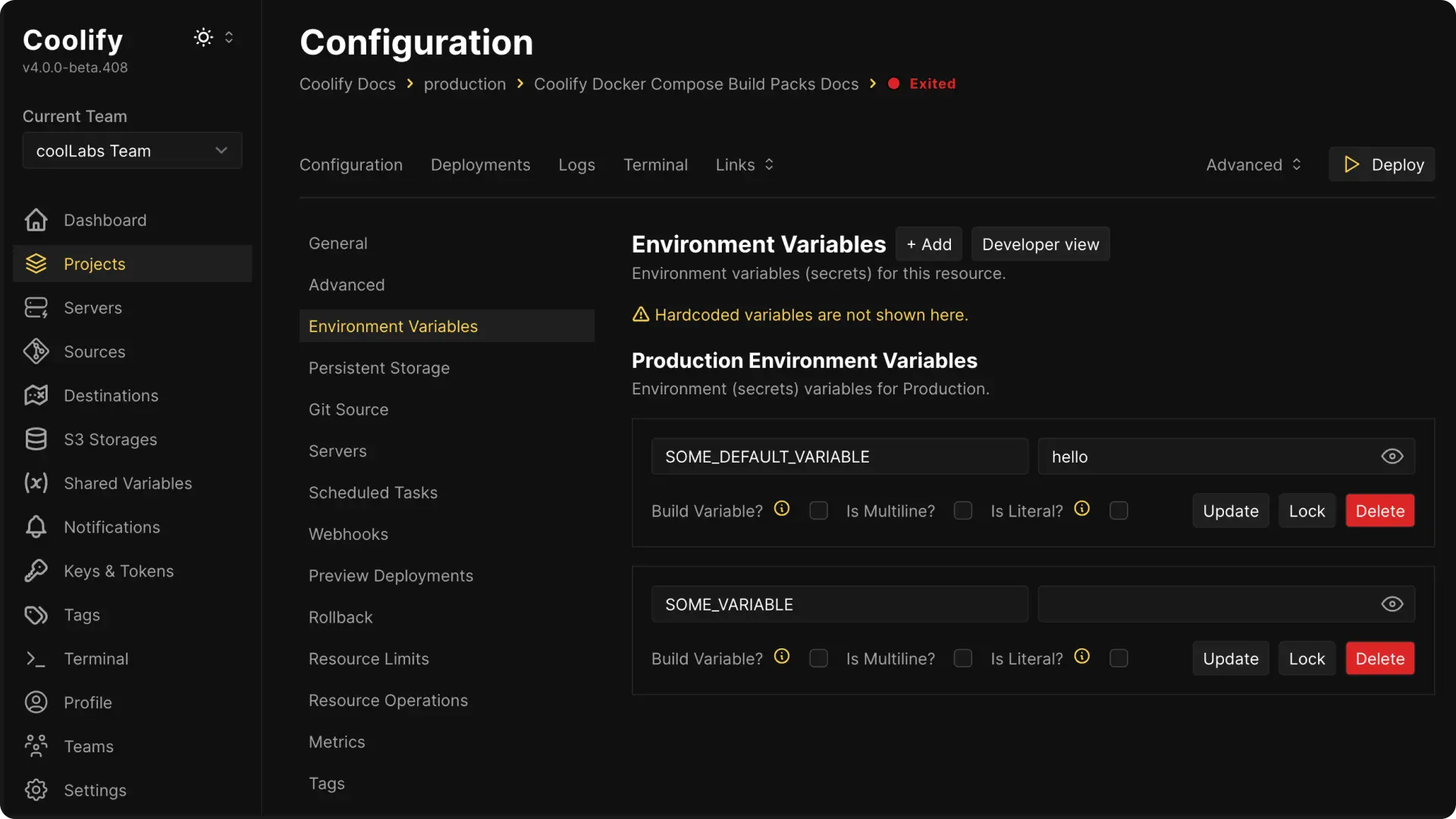
Under Advanced > Docker compose > Predefined network, choose Connect to predefined network only when the Compose services must communicate with resources on the selected Coolify destination. Names can be prefixed to prevent collisions, so verify the generated container or service name before using it as a hostname.
Do not publish a service with ports: unless it must be reachable directly on a server interface. A published host port bypasses domain-based proxy routing and can expose an internal service.
Raw Compose deployment for an Application
For a Git-based Docker Compose Application, choosing Raw (deploy file as-is) under Advanced > Docker compose > Compose deployment applies the definition without most Coolify modifications. You must provide the proxy labels, networking, and other behavior that the normal deployment path generates.
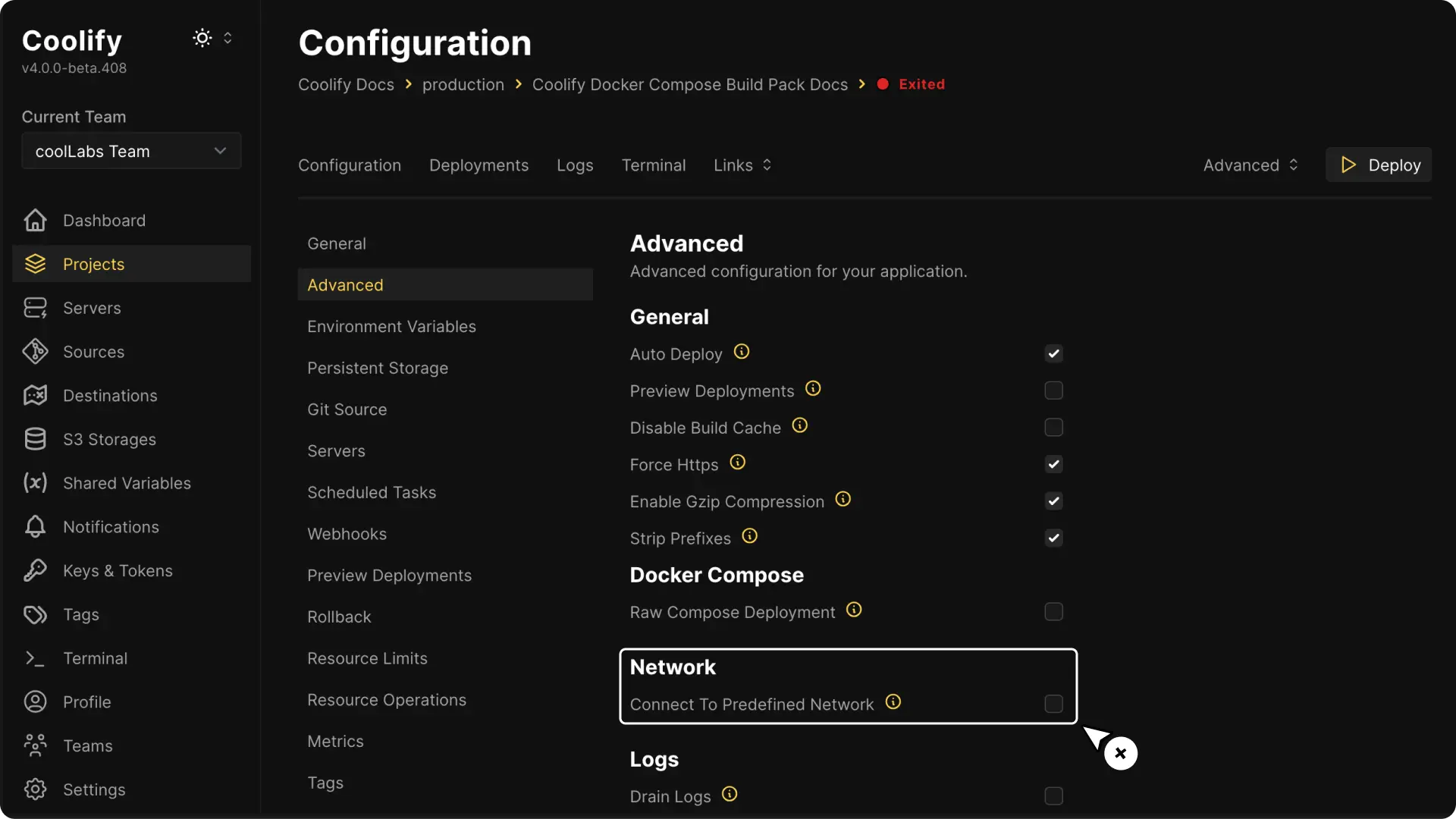
Enable raw mode only when the Compose definition already contains everything required to expose and operate the application. Coolify cannot repair missing proxy or networking configuration in an as-is deployment.
Application labels
For a normal Git-based Docker Compose Application, Coolify adds these management labels when they are absent:
labels:
  - coolify.managed=true
  - coolify.applicationId=<application-id>
  - coolify.type=application
Coolify also generates the proxy labels needed for domains configured in the application. Define and maintain proxy labels yourself only when Compose deployment is Raw (deploy file as-is).
Application build arguments
For a Git-based Docker Compose Application, Coolify can inject application build variables as Docker build arguments for services that use build:.
Under Advanced > Build, set Build arguments to Managed manually in Dockerfile when the service Dockerfiles declare and consume every required ARG themselves.
SOURCE_COMMIT is excluded from the build by default so commits with unchanged layers can reuse cache. Under Advanced > Build, set Source commit availability to Available during build only when the image contents need the commit value.
Application Compose commands
For a Git-based Docker Compose Application, the Custom Build Command and Custom Start Command fields replace the normal Compose commands. Coolify injects the Compose file and environment-file flags unless the custom command supplies its own.
Keep paths relative to Base Directory and use the same Compose definition that Coolify parsed. Otherwise, generated domains, labels, and variables may not match the deployed services.
Troubleshoot an unavailable domain
If a domain shows No Available Server:
- inspect the deployment and service logs
- confirm the target service is running and healthy
- confirm the domain includes the service's internal listening port when it is not
80 - confirm the process listens on
0.0.0.0, not only127.0.0.1 - follow No available server for proxy checks
Variables in network names
Compose network names support interpolation such as ${NETWORK:-coolify} and ${COMPOSE_PROJECT_NAME}_default, including service networks: entries. A network name consisting of a single variable is added as an editable environment variable.