
Downgrade Coolify
Downgrading Coolify replaces the version of the self-hosted Coolify control plane. It does not roll back your applications, databases, services, managed servers, or their data.
The Coolify team manages instance versions for Coolify Cloud. You must wait for the Coolify team to downgrade the instance if the latest version causes a serious issue. If you are experiencing any issues with Coolify, contact the Coolify team.
You have to use the terminal to downgrade Coolify. The dashboard and automatic updates only install newer releases.
Before you downgrade
- Create an instance backup.
- Review the release notes for the current and target versions.
- Choose a maintenance window: the dashboard will be unavailable while Coolify restarts, but your apps keep running.
- Check for active deployments and let them finish before continuing.
An older Coolify release may not work with database changes made by a newer release.
Changing the version does not restore the earlier database state. If the downgrade breaks your Coolify instance, restore the known-good instance backup instead of downgrading through multiple older releases.
Perform the downgrade
Disable automatic updates
Prevent Coolify from returning to the newest release after the downgrade.
Open Settings in the left sidebar, then select Updates.
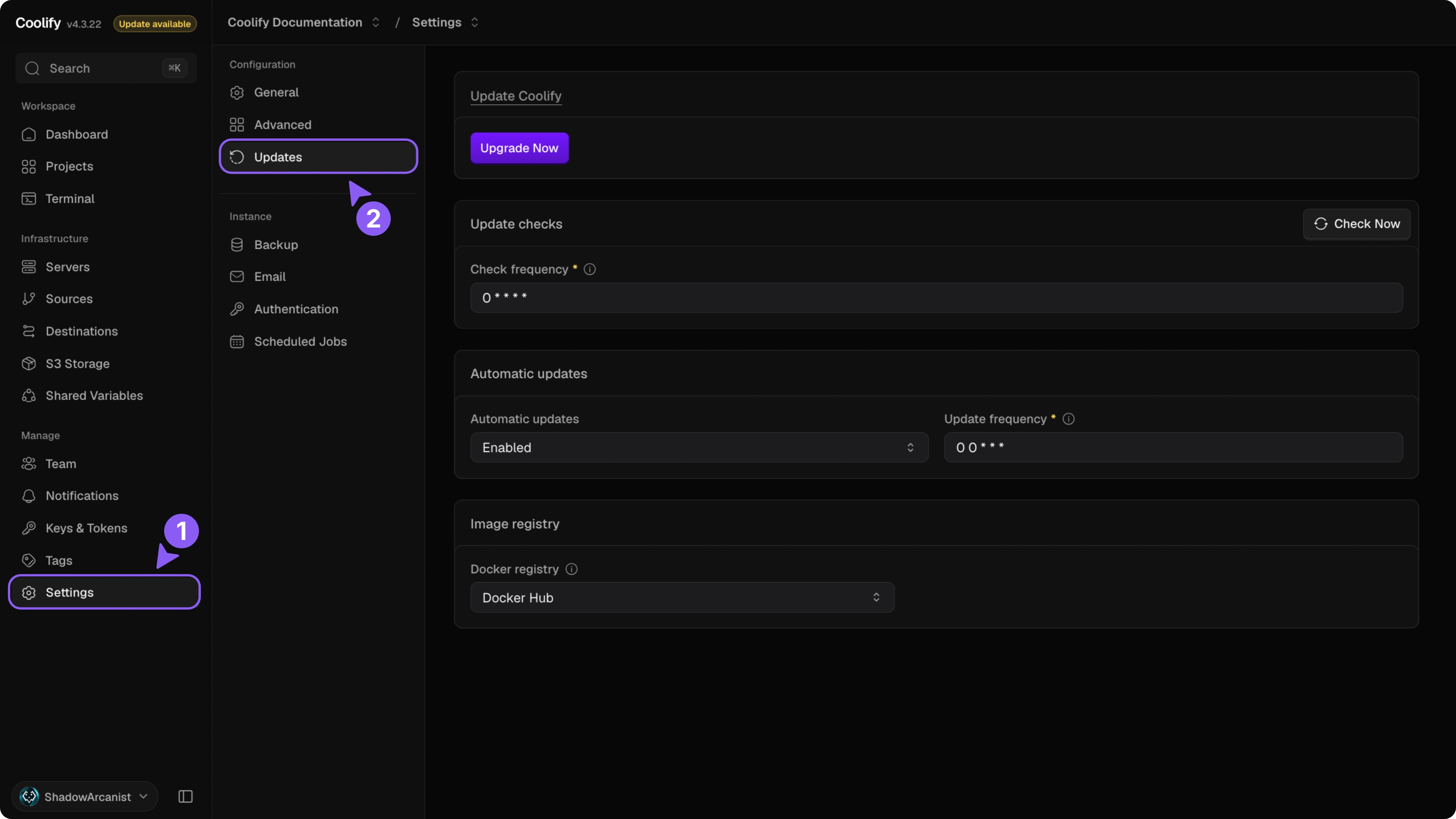
Under Automatic updates, choose Disabled. This setting saves immediately.
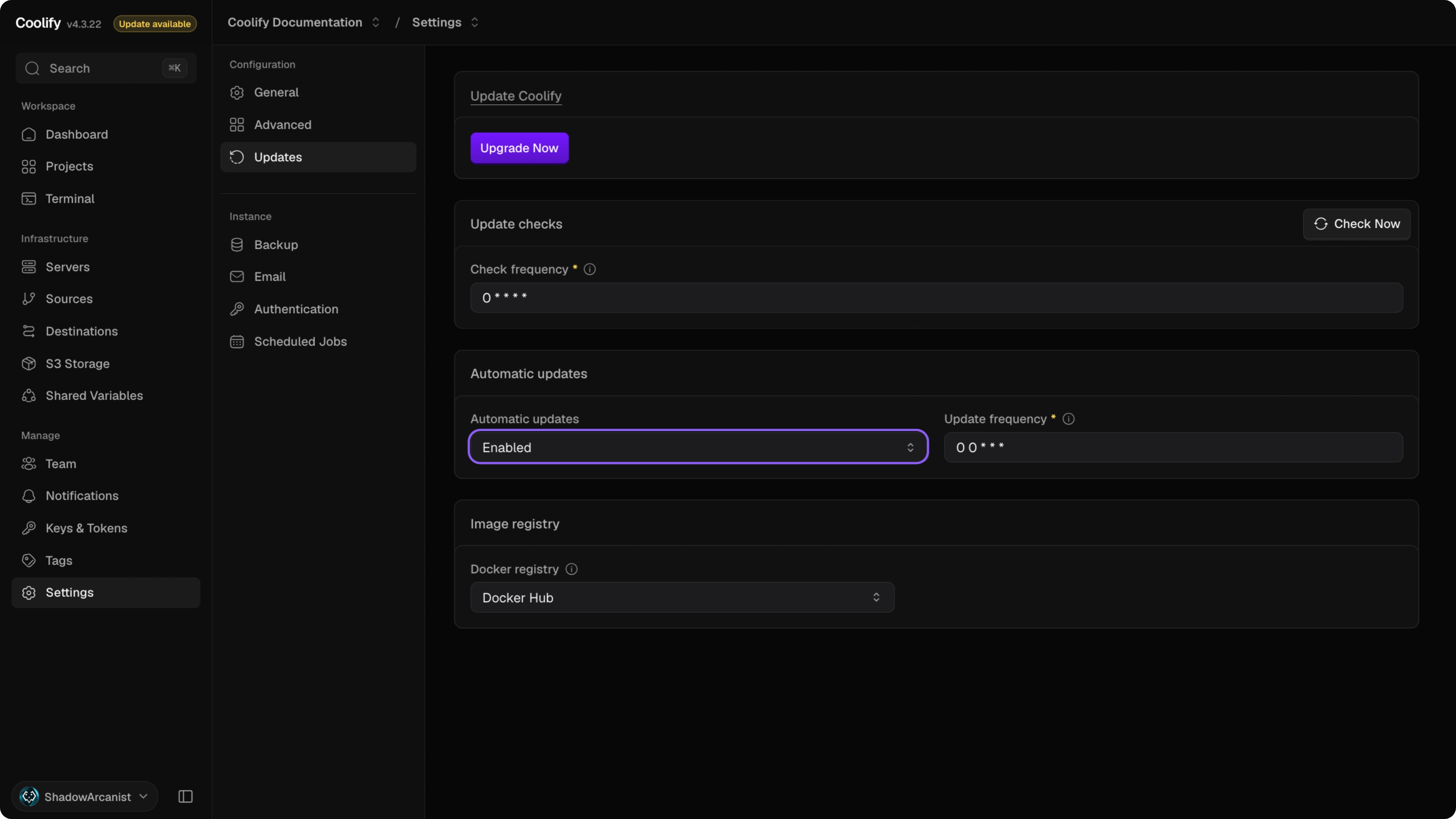
If you cannot change Automatic updates, check whether /data/coolify/source/.env contains the AUTOUPDATE environment variable. If it does, set it to false.
The upgrade script saves a timestamped backup of .env before changing it. Save your own copy of /data/coolify/source/.env before downgrading in case anything goes wrong.
Install the target version
Connect to the Coolify server over SSH:
ssh root@<server-ip>Replace <server-ip> with your server's IP address. If you normally sign in with a non-root account, run sudo -i first to open a root shell.
Run the upgrade script with the exact target version:
curl -fsSL https://cdn.coollabs.io/coolify/upgrade.sh | bash -s 4.3.21Replace 4.3.21 with the version from the release you selected.
The upgrade script downloads the Coolify configuration files, pulls the target Coolify image, then restarts the Coolify containers in the background. Wait for the restart confirmation before closing the SSH session.
Verify the downgrade
After the upgrade script completes, wait for the dashboard to be available again, then confirm:
- the dashboard opens and shows the expected Coolify version
- you can see your projects and resources
- managed servers still connect
The upgrade script writes a timestamped log such as /data/coolify/source/upgrade-2026-07-11-12-00-00.log. Review the newest upgrade-*.log file if the dashboard is still unavailable or a container fails to start.