
Update Coolify
Updating Coolify changes the self-hosted Coolify control plane. It does not update the applications, databases, services, or servers you manage with Coolify.
If you use Coolify Cloud, the Coolify team manages instance updates. You must wait for the Coolify team to update the instance.
For a self-hosted instance, open Settings in the left sidebar, select Updates.
Before you update
- Create an instance backup.
- Review the release notes for the version you plan to install.
- Check for active deployments; they can fail during the update process.
Read the Reverb migration guide before you update if you use custom Compose overrides, realtime ports, firewall rules, or Cloudflare Tunnels.
Choose an update path
Automatic updates
Enable Automatic updates and set Update frequency. Coolify then checks for a new release and installs it automatically when one is available.
Enable automatic updates
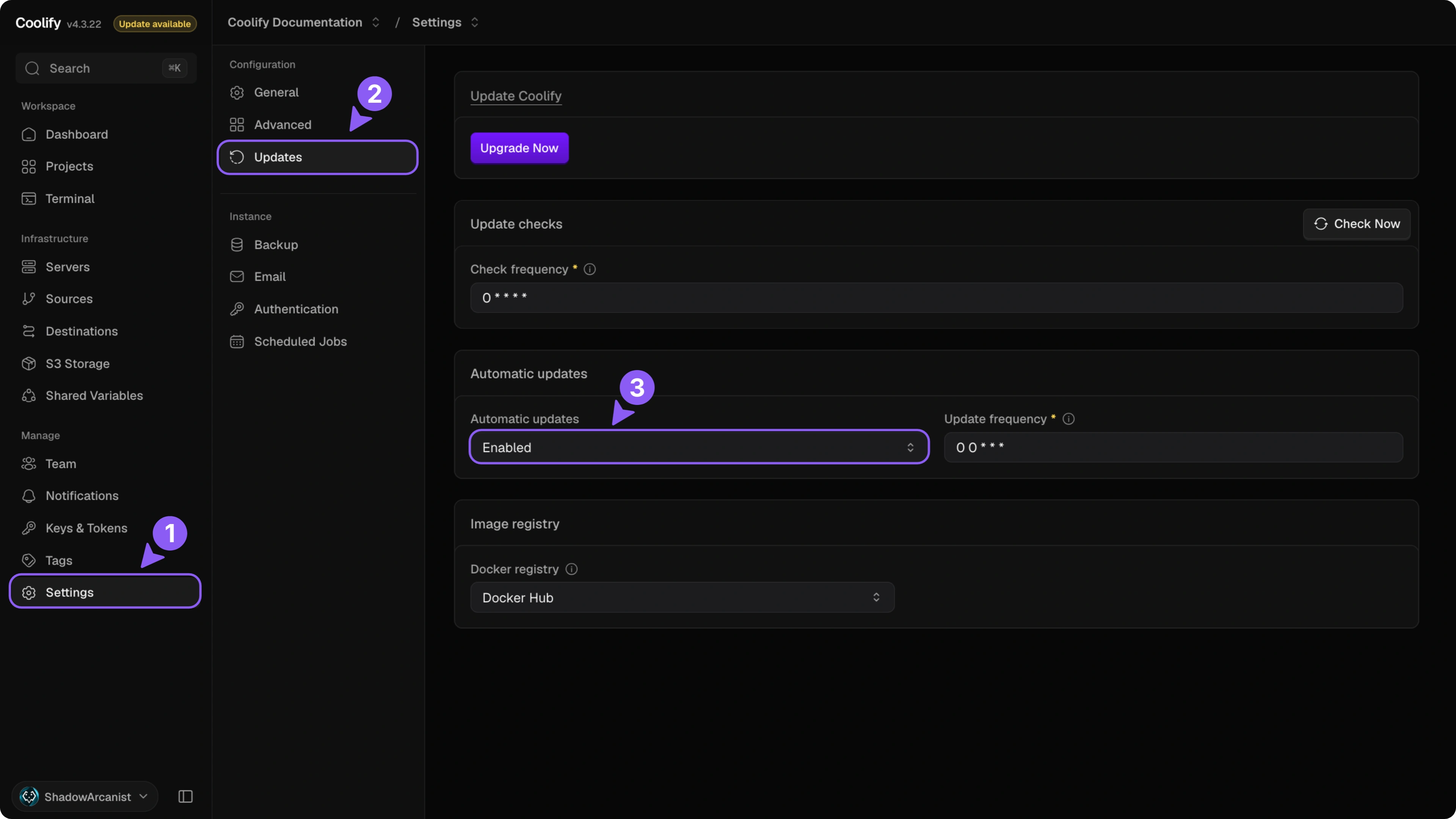
Choose Enabled under Automatic updates. This option saves immediately, and Update frequency becomes available.
If automatic updates cannot be configured in the dashboard, AUTOUPDATE is set in /data/coolify/source/.env. Configure automatic updates in that file instead.
Update frequency
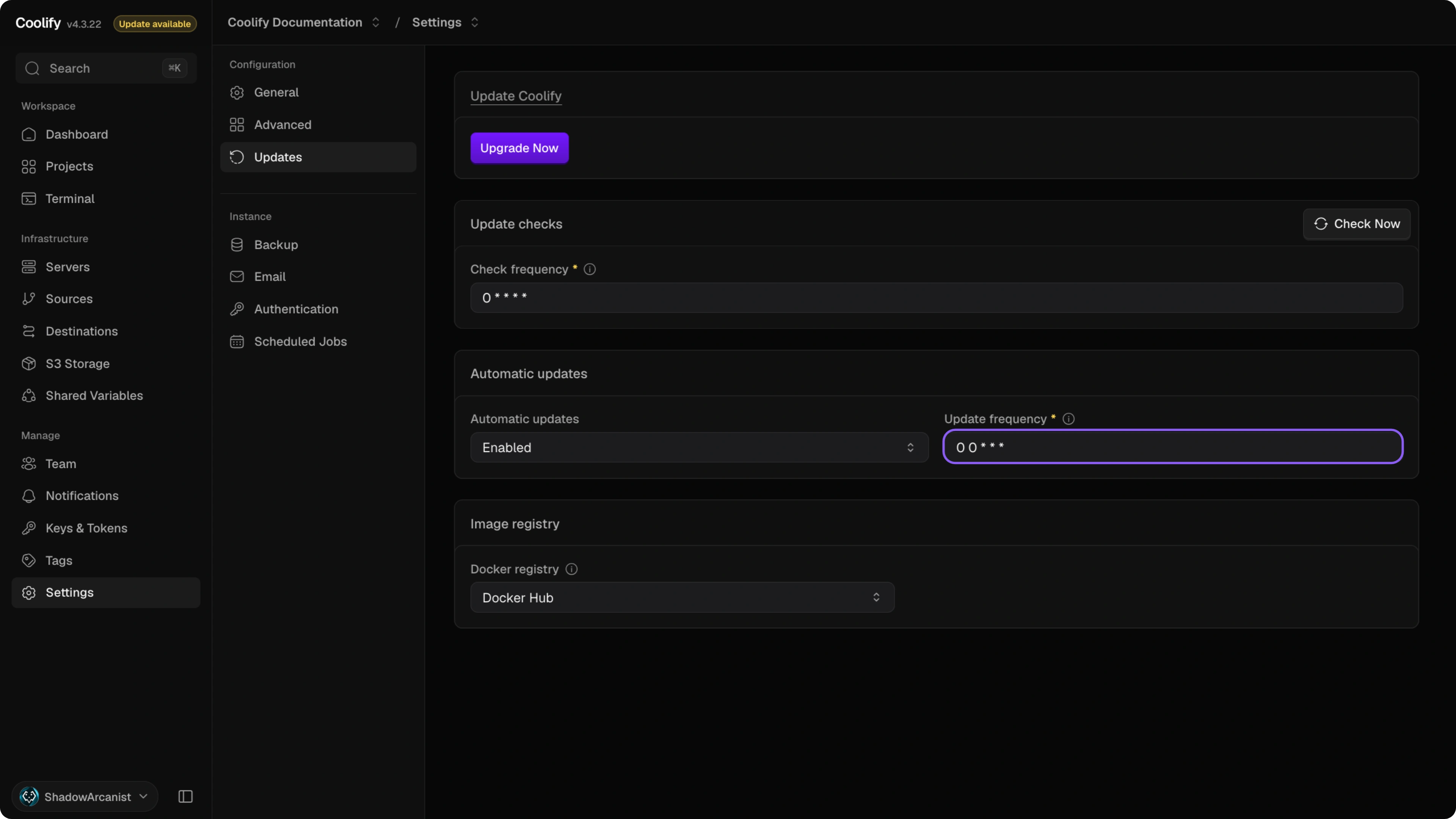
Update frequency sets how often Coolify checks for a new release and installs it if one is available. Enter a cron expression or a preset such as every_minute, hourly, daily, weekly, monthly, or yearly, then click Save changes. The default is 0 0 * * *, which runs daily at midnight in the instance timezone.
During an update, Coolify restarts to apply the new version. The dashboard is unavailable briefly, usually for less than a minute.
Update frequency is unavailable when AUTOUPDATE is set in /data/coolify/source/.env.
Check frequency
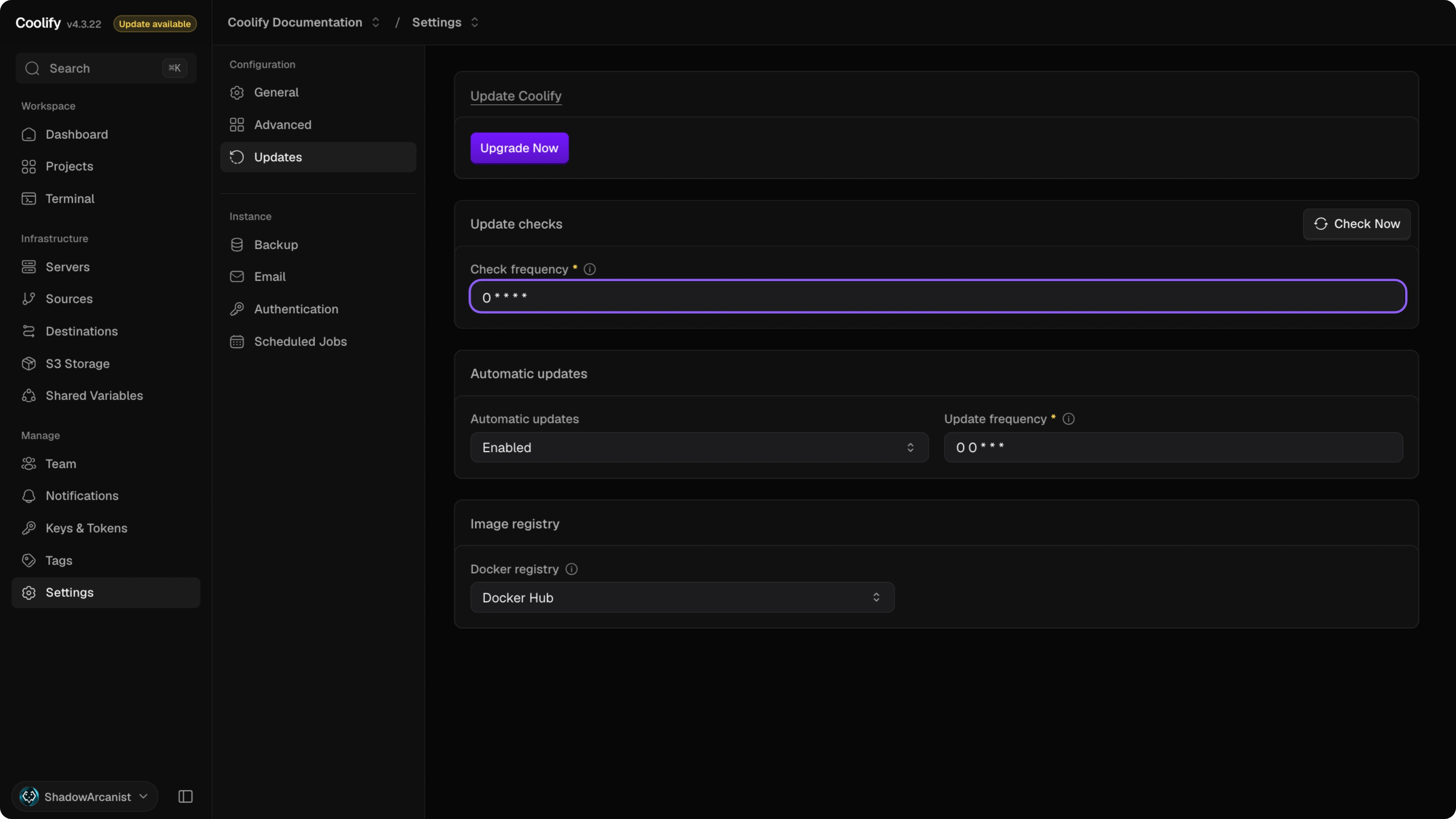
Check frequency sets how often Coolify checks the versions file on the CDN and updates the available-version status. Coolify installs an update only when a new version is available. Enter a cron expression or a preset such as every_minute, hourly, daily, weekly, monthly, or yearly, then click Save changes. The default is 0 * * * *, which runs hourly.
Click Check now to check for a new version immediately. This does not install the update.
Verify the update
After an update, confirm that the dashboard is reachable, the expected Coolify version is shown, and your resources are running.
If the dashboard does not return, review the update logs on the Coolify server. Coolify writes update logs under /data/coolify/source/ with names such as upgrade-2026-07-11-12-00-00.log.
Instance Environment Variables
Configure PHP memory, workers, and scheduled job dispatch for a self-hosted Coolify instance and apply environment changes.
Migrate realtime services to Reverb
Prepare a self-hosted Coolify instance for the migration from the separate Soketi container to Laravel Reverb in the Coolify container.